How to Fix WARDOGS Stuttering and FPS Drops on PC
Reduce stutter, frame drops, and hitching in WARDOGS on Windows with driver, shader cache, background app, and in-game settings checks.
By Kudu Team · Reviewed
Game Mode
Apply gaming tweaks you can undo
Kudu’s Game Mode applies supported Windows gaming tweaks and records how to restore them. It does not promise FPS gains; drivers and in-game settings still matter.
Download Kudu Free →How Game Mode worksWhat Causes This?
WARDOGS is a 100-player, three-team shooter on a destructible map, so stutter often comes from heavy CPU load, sudden asset streaming, shader compilation, or server-side chaos during large fights. Because it is also an Early Access game, performance can vary more between patches, maps, and hardware setups than in a fully mature release.
More general causes include outdated GPU drivers, corrupted game files, unstable overlays, background apps using CPU or disk, and Windows power or graphics settings that limit performance consistency.
Common Symptoms
- Short freezes or hitching when entering firefights or moving into new areas.
- FPS drops during explosions, destruction, or crowded control-zone pushes.
- Smooth menu performance but inconsistent frame pacing in matches.
- Stutter that gets worse after a patch or GPU driver update.
- High CPU usage, disk activity, or VRAM pressure while the game is running.
How to Fix It Manually
-
Verify WARDOGS in Steam. In Steam, open Library > right-click WARDOGS > Properties > Installed Files > Verify integrity of game files. This checks for broken or missing files after updates or crashes.
-
Lower the settings that usually hurt large multiplayer fights first. In WARDOGS, reduce settings tied to shadows, effects, post-processing, view distance, foliage, and any upscaling or frame generation option if it causes instability on your system. In a destructible 100-player match, CPU-heavy settings can matter as much as pure GPU settings, so test changes in an actual match instead of only in the menu.
-
Clear the GPU shader cache, then let the game rebuild it. Corrupted or outdated shader cache data can cause hitching after patches or driver changes. Use your GPU vendor’s normal method or Windows Disk Cleanup if it offers a DirectX shader cache entry; for vendor guidance, see NVIDIA’s driver help and AMD support pages. Expect one-time stutter the first match after rebuilding shaders.
-
Check anti-cheat and Steam overlay conflicts. If WARDOGS uses an anti-cheat component, let Steam finish any first-run installs or repairs and restart the PC afterward. Then test with the Steam Overlay disabled for this game in Properties > General to rule out overlay-related frametime spikes.
-
Update your GPU driver with a clean install option if available. Install the latest stable driver directly from NVIDIA, AMD, or Intel rather than Windows Update. Official driver pages: NVIDIA Driver Downloads, AMD Drivers and Support, and Intel Download Center.
-
Turn off unnecessary background apps and overlays. Close browser tabs, recording tools, RGB utilities, motherboard control suites, and chat overlays you do not need while playing. Microsoft also documents Game Mode and graphics settings in Windows support, which can help reduce background interference on some systems.
-
Check Windows power and graphics settings. Set Windows to a performance-focused power mode and make sure the game is using the correct dedicated GPU on laptops. Microsoft’s support documentation for Graphics settings and Power mode covers the current menu paths if they differ between Windows versions.
-
Repair Windows system files if stutter started after broader system issues. If multiple games began hitching, run SFC /scannow and DISM /Online /Cleanup-Image /RestoreHealth from an elevated Command Prompt using Microsoft’s documented steps. This will not fix every game issue, but it can help if Windows components tied to graphics or storage are damaged.
Where Kudu Helps
Kudu can help you cut down background interference before launching WARDOGS. Use Performance Monitor to spot CPU, memory, disk, or network-heavy processes during stutter, Startup Manager to disable non-essential launch-at-boot apps, and System Cleaner to clear supported GPU shader caches so the game can rebuild them cleanly.
On Windows, Game Mode in Kudu can apply supported gaming tweaks and record how to restore them later. It will not promise more FPS, but it can help you test a cleaner gaming setup.
Frequently asked questions
- Why does WARDOGS stutter more in big fights than in the menu?
- Large fights put more pressure on the CPU, storage streaming, and shader pipeline, especially with destruction and many players nearby. Menu FPS is not a good indicator of match performance.
- Should I delete all game caches to fix WARDOGS FPS drops?
- No. Start with verifying files and clearing only the GPU shader cache through normal Windows or driver tools. Deleting unrelated system caches usually does not help and can create extra rebuild time.
- Can Steam overlay cause WARDOGS hitching?
- It can on some systems, especially if you also run other overlays or capture tools. Disable the Steam Overlay for WARDOGS and test one match to see if frametime spikes improve.
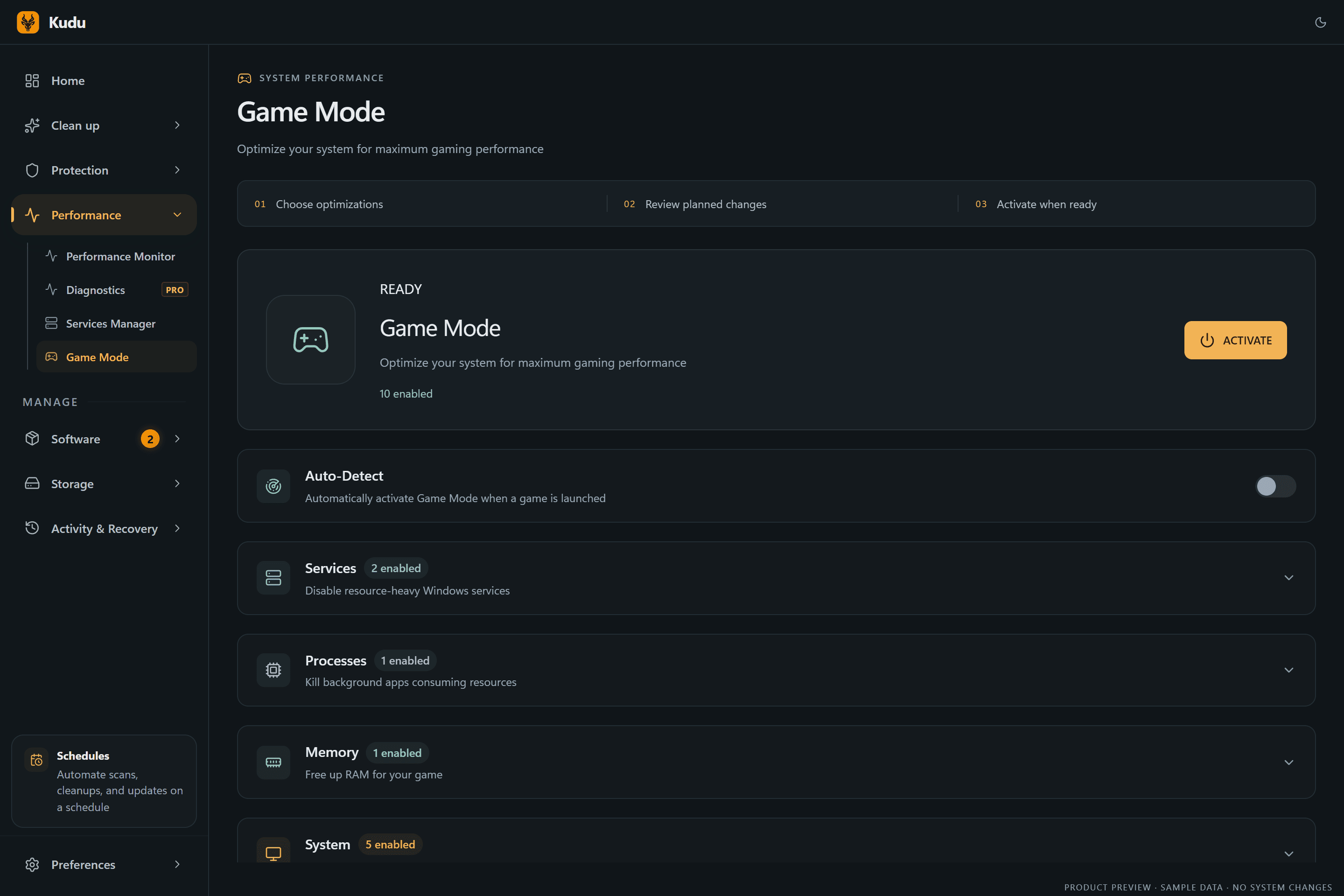
Game Mode
Apply gaming tweaks you can undo
Kudu’s Game Mode applies supported Windows gaming tweaks and records how to restore them. It does not promise FPS gains; drivers and in-game settings still matter.
Download Kudu Free →How Game Mode worksRelated guides
How to Fix AION 2 Stuttering and FPS Drops on PC
Reduce stutter, frame drops, and hitching in AION 2 on Windows with driver, shader cache, background app, and in-game settings checks.
How to Fix Apex Legends™ Stuttering and FPS Drops on PC
Reduce stutter, frame drops, and hitching in Apex Legends™ on Windows with driver, shader cache, background app, and in-game settings checks.
How to Fix ARC Raiders Stuttering and FPS Drops on PC
Reduce stutter, frame drops, and hitching in ARC Raiders on Windows with driver, shader cache, background app, and in-game settings checks.
How to Fix Counter-Strike 2 Stuttering and FPS Drops on PC
Reduce stutter, frame drops, and hitching in Counter-Strike 2 on Windows with driver, shader cache, background app, and in-game settings checks.