How to Fix ARC Raiders Stuttering and FPS Drops on PC
Reduce stutter, frame drops, and hitching in ARC Raiders on Windows with driver, shader cache, background app, and in-game settings checks.
By Kudu Team · Reviewed
Game Mode
Apply gaming tweaks you can undo
Kudu’s Game Mode applies supported Windows gaming tweaks and records how to restore them. It does not promise FPS gains; drivers and in-game settings still matter.
Download Kudu Free →How Game Mode worksWhat Causes This?
ARC Raiders can stutter on PC when the game is building or rebuilding shaders, when Steam files are damaged, or when background apps interfere with a multiplayer session. Because it is an online extraction game, hitching can also feel worse when network instability overlaps with frame-time spikes.
More general causes include outdated GPU drivers, corrupted DirectX shader caches, overlays and capture tools, aggressive startup apps, thermal throttling, and VRAM or system memory pressure. If stutter started right after a patch or driver update, a bad cache or changed graphics settings is also a likely cause.
Common Symptoms
- Short freezes or hitching when entering a new area or during combat.
- FPS dropping sharply in busy scenes, then recovering a few seconds later.
- Smooth menu performance but uneven frame pacing in matches.
- Stutter that gets worse after alt-tabbing, streaming, or running overlays.
- Rubber-banding or input delay that feels similar to FPS drops during online play.
How to Fix It Manually
-
Verify ARC Raiders in Steam
In Steam, open Library > right-click ARC Raiders > Properties > Installed Files > Verify integrity of game files. This checks for missing or damaged files after a patch or crash. Steam’s official help covers file verification and general download/file issues: https://help.steampowered.com/ -
Lower the settings that usually cause frame-time spikes first
Start with a lower preset, then test a match. If available in your build, reduce shadows, effects, post-processing, view distance, and any upscaling or frame generation setting that is causing instability on your system rather than assuming the highest setting is best. If you changed many options at once, return to defaults and retest so you can isolate the trigger. -
Let shader compilation finish, then clear shader caches if stutter continues
If the game shows shader compilation after an update, let it complete before playing. If stutter persists across multiple launches, clear the DirectX shader cache in Windows: Settings > System > Storage > Temporary files > DirectX Shader Cache. For NVIDIA, AMD, or Intel, you can also use the driver’s normal cache reset option if your driver provides one; use the vendor’s own instructions rather than deleting random folders. -
Check anti-cheat and overlays
If ARC Raiders uses an anti-cheat component, let Steam finish installing or repairing it after updates, and reboot once if prompted. Then disable non-essential overlays and injectors one by one—Steam Overlay, Discord overlay, GeForce Experience/ NVIDIA App overlay, Xbox Game Bar, MSI Afterburner/RivaTuner, and recording tools are common causes of hitching in online games. -
Update your GPU driver with a clean restart
Install the latest stable driver for your GPU from the official vendor site, then restart Windows. Official driver pages: NVIDIA https://www.nvidia.com/Download/index.aspx, AMD https://www.amd.com/en/support, Intel https://www.intel.com/content/www/us/en/support/detect.html -
Use Windows graphics and power settings that favor stable performance
Turn on Game Mode in Windows if it is off, and make sure the PC is not in a battery-saving or low-power plan while gaming. Microsoft’s graphics and gaming settings documentation is the safest reference point here: https://support.microsoft.com/windows -
Close background apps and check for CPU, RAM, disk, or network spikes
Before launching the game, close browser tabs, launchers you are not using, cloud sync tools, RGB utilities, and capture software. In Task Manager, watch for high CPU, memory, disk, or network use from other processes while ARC Raiders is running; if another app spikes at the same time as the stutter, that is your next fix. -
Rule out storage and system file issues if the problem started suddenly
Make sure the game is installed on a healthy SSD with free space available. If Windows itself has become unstable, run sfc /scannow and, if needed, DISM /Online /Cleanup-Image /RestoreHealth using Microsoft’s guidance: https://support.microsoft.com/windows
Where Kudu Helps
Kudu can help you cut down on common stutter triggers without guessing. Use System Cleaner to clear supported GPU shader caches for review, Performance Monitor to spot background CPU, memory, disk, or network spikes while the game is running, and Startup Manager to disable non-essential apps that load with Windows and interfere with matches.
On Windows, Game Mode in Kudu can apply supported gaming tweaks and records how to restore them later. It will not promise higher FPS, but it can help you get to a cleaner, more consistent baseline for troubleshooting.
Frequently asked questions
- Why does ARC Raiders stutter even when my average FPS looks high?
- High average FPS can still feel bad if frame times are uneven. Shader compilation, overlays, background tasks, or network-related hitching can cause short spikes that average FPS does not show clearly.
- Will clearing the shader cache fix ARC Raiders FPS drops?
- It can help if the cache is corrupted or was rebuilt badly after a game or driver update. It is most useful when stutter started suddenly after patching, not as a guaranteed fix for every performance problem.
- Can Steam file verification fix ARC Raiders hitching?
- Yes, if the stutter is caused by damaged or incomplete game files. It is one of the safest first checks after crashes, interrupted updates, or unusual behavior right after a patch.
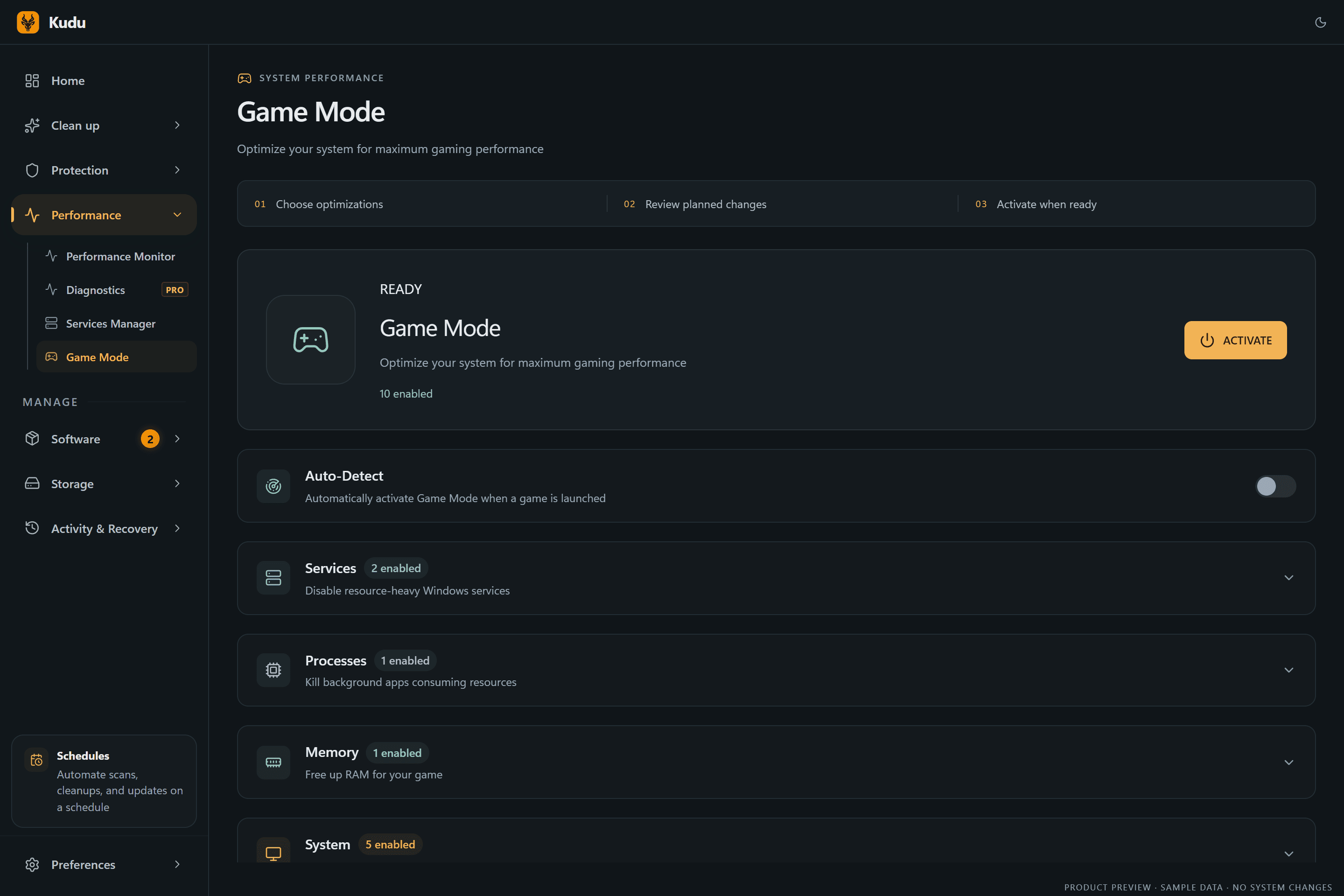
Game Mode
Apply gaming tweaks you can undo
Kudu’s Game Mode applies supported Windows gaming tweaks and records how to restore them. It does not promise FPS gains; drivers and in-game settings still matter.
Download Kudu Free →How Game Mode worksRelated guides
How to Fix AION 2 Stuttering and FPS Drops on PC
Reduce stutter, frame drops, and hitching in AION 2 on Windows with driver, shader cache, background app, and in-game settings checks.
How to Fix Apex Legends™ Stuttering and FPS Drops on PC
Reduce stutter, frame drops, and hitching in Apex Legends™ on Windows with driver, shader cache, background app, and in-game settings checks.
How to Fix Counter-Strike 2 Stuttering and FPS Drops on PC
Reduce stutter, frame drops, and hitching in Counter-Strike 2 on Windows with driver, shader cache, background app, and in-game settings checks.
How to Fix Deadlock Stuttering and FPS Drops on PC
Reduce stutter, frame drops, and hitching in Deadlock on Windows with driver, shader cache, background app, and in-game settings checks.