How to Fix Deadlock Stuttering and FPS Drops on PC
Reduce stutter, frame drops, and hitching in Deadlock on Windows with driver, shader cache, background app, and in-game settings checks.
By Kudu Team · Reviewed
Game Mode
Apply gaming tweaks you can undo
Kudu’s Game Mode applies supported Windows gaming tweaks and records how to restore them. It does not promise FPS gains; drivers and in-game settings still matter.
Download Kudu Free →How Game Mode worksWhat Causes This?
Deadlock is still in early development, so stutter can come from game updates, incomplete optimization, shader compilation, and server-side changes that affect frame pacing during matches. On Steam games like this, corrupted game files or an outdated GPU driver can also cause hitching after patches.
More generally, FPS drops on PC often come from background apps using CPU, RAM, disk, or network bandwidth, unstable graphics settings, Windows power settings, or a damaged shader cache. Thermal throttling and overlays can also make stutter worse even when average FPS looks fine.
Common Symptoms
- Short freezes or hitches when entering fights, loading into a match, or moving into a new area.
- FPS dropping suddenly even though menus seem smooth.
- Micro-stutter that gets worse after alt-tabbing or after playing for a while.
- Frame pacing feels uneven even when the FPS counter stays fairly high.
- Stutter appears after a game update or GPU driver update.
How to Fix It Manually
-
Verify Deadlock’s game files in Steam. In Steam, open Library > right-click Deadlock > Properties > Installed Files > Verify integrity of game files. This checks for broken or missing files after updates.
-
Lower the settings that usually cause hitching first. In Deadlock, reduce options that heavily affect GPU load and frame pacing, such as resolution scaling, shadows, effects, or post-processing if available. If you are using a very high frame rate cap or uncapped FPS, try a sensible cap that matches your display to reduce spikes.
-
Let shader compilation finish and clear the GPU shader cache if stutter started after an update. First launch after a patch can stutter while shaders rebuild. If the problem continues across multiple launches, clear the GPU shader cache using your GPU vendor’s supported method, then restart Windows. Use the official vendor instructions for your graphics driver settings: NVIDIA Control Panel documentation, AMD Radeon Software help, or Intel Graphics support pages.
-
Check overlays and anti-cheat conflicts. Disable non-essential overlays one at a time, especially Steam Overlay, Discord overlay, GPU performance overlays, and capture tools, then test again. If Deadlock uses anti-cheat components, avoid injectors, unofficial tools, or modified files, because they can cause crashes, stutter, or launch issues.
-
Update your GPU driver and Windows fully. Install the latest stable driver directly from NVIDIA, AMD, or Intel, and reboot after installation. Also install pending Windows updates, since display stack and game-related fixes are often delivered through Windows Update. See Microsoft’s Windows Update guidance and your GPU vendor’s driver support pages.
-
Use a high-performance power plan and make sure the game runs on the correct GPU. On laptops, confirm Deadlock is using the dedicated GPU in Windows Graphics settings or your GPU control panel. In Windows, set the PC to a performance-focused power mode when plugged in so the CPU and GPU do not downclock too aggressively.
-
Close background apps that cause spikes. Web browsers, launchers downloading updates, RGB software, recording apps, cloud sync tools, and hardware monitoring utilities can all cause stutter. Open Task Manager and sort by CPU, Memory, and Disk usage while the game is running to find anything spiking in the background.
-
Check for disk space and install location issues. Make sure the drive with Steam and Deadlock has free space available for updates and shader/cache activity. If the game is installed on a slow or unhealthy drive, moving it to a faster SSD through Steam can reduce loading hitches.
Where Kudu Helps
Kudu can help you spot background load with Performance Monitor, so you can see which processes are using the most CPU or memory while Deadlock is stuttering. Its Startup Manager can disable non-essential apps that keep launching with Windows, and System Cleaner can clear supported GPU shader caches for a clean rebuild after a game or driver update. Game Mode can also apply supported Windows gaming tweaks and records how to restore them.
Frequently asked questions
- Why does Deadlock stutter after an update?
- Patches can invalidate shaders, change performance behavior, or leave behind corrupted files. Verify the game files, then let shaders rebuild and update your GPU driver if needed.
- Should I delete all cache files to fix Deadlock FPS drops?
- No. Only clear supported GPU shader caches or launcher/game caches using official tools or settings. Avoid deleting random system folders, because that can cause other problems without fixing stutter.
- Can overlays cause Deadlock micro-stutter?
- Yes. Steam, Discord, recording tools, and GPU overlays can sometimes cause frame pacing issues or hitching. Disable them one at a time and test to find the culprit.
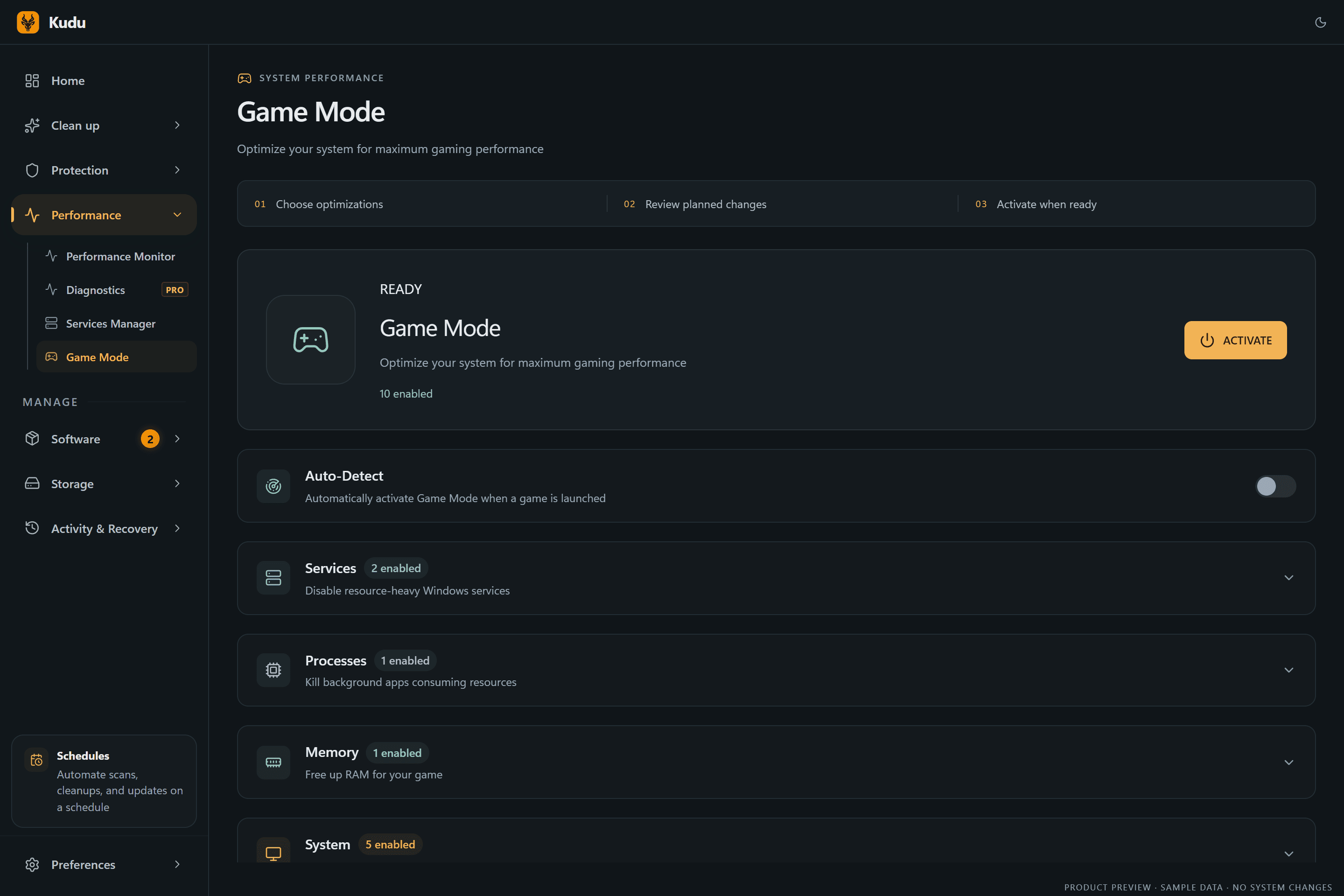
Game Mode
Apply gaming tweaks you can undo
Kudu’s Game Mode applies supported Windows gaming tweaks and records how to restore them. It does not promise FPS gains; drivers and in-game settings still matter.
Download Kudu Free →How Game Mode worksRelated guides
How to Fix AION 2 Stuttering and FPS Drops on PC
Reduce stutter, frame drops, and hitching in AION 2 on Windows with driver, shader cache, background app, and in-game settings checks.
How to Fix Apex Legends™ Stuttering and FPS Drops on PC
Reduce stutter, frame drops, and hitching in Apex Legends™ on Windows with driver, shader cache, background app, and in-game settings checks.
How to Fix ARC Raiders Stuttering and FPS Drops on PC
Reduce stutter, frame drops, and hitching in ARC Raiders on Windows with driver, shader cache, background app, and in-game settings checks.
How to Fix Counter-Strike 2 Stuttering and FPS Drops on PC
Reduce stutter, frame drops, and hitching in Counter-Strike 2 on Windows with driver, shader cache, background app, and in-game settings checks.