How to Fix Counter-Strike 2 Stuttering and FPS Drops on PC
Reduce stutter, frame drops, and hitching in Counter-Strike 2 on Windows with driver, shader cache, background app, and in-game settings checks.
By Kudu Team · Reviewed
Game Mode
Apply gaming tweaks you can undo
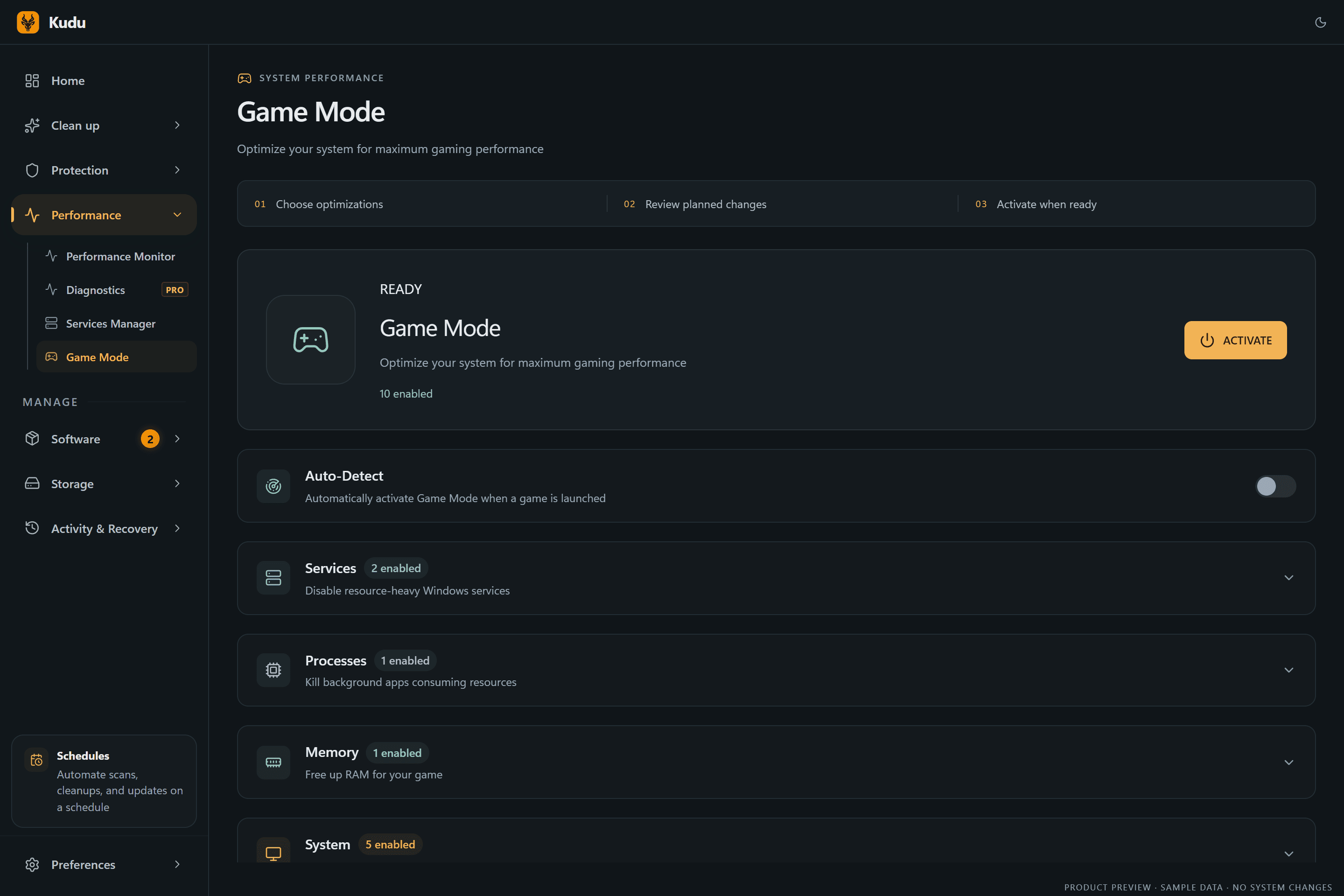
Kudu’s Game Mode applies supported Windows gaming tweaks and records how to restore them. It does not promise FPS gains; drivers and in-game settings still matter.
Download Kudu Free →How Game Mode worksWhat Causes This?
Counter-Strike 2 stutter often comes down to shader compilation, driver issues, Steam overlay/background app conflicts, or settings that push CPU frame times too hard during smokes, utility, and busy firefights. Because CS2 is highly sensitive to frame pacing, even small spikes from background recording tools, browser tabs, RGB software, or unstable overclocks can feel worse than in slower games.
More general causes include corrupted game files, outdated GPU drivers, Windows power settings, full or slow storage, and third-party security tools interfering with Steam or the game process.
Common Symptoms
- Short freezes or hitching when a round starts, a smoke blooms, or you enter a new area.
- FPS drops during gunfights even though average FPS looks high.
- Uneven frame pacing, micro-stutter, or input feeling inconsistent.
- Stutter that starts after a driver update, Windows update, or graphics setting change.
- High CPU usage from background apps while CS2 is running.
How to Fix It Manually
-
Verify Counter-Strike 2 files in Steam. In Steam, open your Library, right-click Counter-Strike 2 > Properties > Installed Files > Verify integrity of game files. This checks for damaged or missing files without reinstalling the whole game. Steam documents the process in its support articles.
-
Lower the settings that usually hurt frame time most. In CS2, reduce heavier options first rather than dropping everything at once. If you recently changed multiple graphics settings, test by stepping down shadows, effects, or upscaling-related options one at a time and check whether stutter improves in a bot match or Deathmatch.
-
Let shader caches rebuild after a driver change, and clear the GPU shader cache if stutter started after an update. Both NVIDIA and AMD provide shader cache controls in their driver software, and Windows also uses a DirectX shader cache. If you clear caches, expect the first match or two to feel rougher while shaders rebuild. Use the official NVIDIA App/Control Panel, AMD Software, or Windows Disk Cleanup/Storage tools rather than deleting random folders.
-
Check overlays, capture tools, and anti-cheat-related conflicts. Disable nonessential overlays one by one: Steam Overlay, Discord overlay, GeForce overlay, Radeon recording features, Xbox Game Bar, and third-party monitoring tools. Do not modify anti-cheat files or use unofficial launchers; if security software is aggressively scanning the game, test with its game mode or temporary exclusions only if you trust the product and know how to revert the change.
-
Update or clean-install your GPU driver if the problem began after an update. Get the latest stable driver directly from NVIDIA, AMD, or Intel. If stutter started immediately after a new driver, a clean reinstall or rolling back to the previous stable driver can help; follow the vendor's official instructions and restart afterward.
-
Use Windows graphics and power settings that favor stable performance. On Windows, enable Game Mode and make sure the PC is using a high-performance or balanced plan appropriate for your system. Microsoft documents Game Mode, Graphics settings, SFC, and DISM in its Windows support documentation if you also suspect OS corruption.
-
Close background apps and check for CPU, memory, or disk spikes. Browsers, launchers, RGB suites, motherboard utilities, cloud sync apps, and recording software commonly cause CS2 frame-time spikes. Use Task Manager to sort by CPU and memory usage while the game is open, then close anything nonessential.
-
Repair Windows system files if stutter affects multiple games. If CS2 is not the only game hitching, run SFC /scannow and then DISM /Online /Cleanup-Image /RestoreHealth from an elevated Command Prompt. These are Microsoft-supported repair steps and are safer than deleting system folders or random cache locations.
Where Kudu Helps
Kudu can help you narrow down background causes by showing live CPU, memory, disk, and network usage in Performance Monitor, including which processes are spiking while CS2 stutters. Its Startup Manager can disable nonessential launch-at-boot apps, and System Cleaner can clear supported GPU shader caches so they rebuild cleanly after a driver problem. On Windows, Game Mode in Kudu can apply supported gaming tweaks and record how to restore them.
Frequently asked questions
- Why does Counter-Strike 2 stutter even when my FPS is high?
- High average FPS does not guarantee smooth frame pacing. In CS2, short CPU spikes, shader compilation, overlays, or background apps can cause hitching even when the FPS counter still looks good.
- Should I clear the shader cache to fix CS2 stutter?
- It can help if stutter started after a GPU driver update or corrupted cache issue. Just expect temporary hitching afterward while the cache rebuilds.
- Does verifying CS2 files in Steam help with FPS drops?
- It can if the problem is caused by damaged or incomplete game files. It will not fix every performance issue, but it is a safe first step before deeper Windows or driver troubleshooting.
Game Mode
Apply gaming tweaks you can undo
Kudu’s Game Mode applies supported Windows gaming tweaks and records how to restore them. It does not promise FPS gains; drivers and in-game settings still matter.
Download Kudu Free →How Game Mode worksRelated guides
How to Fix AION 2 Stuttering and FPS Drops on PC
Reduce stutter, frame drops, and hitching in AION 2 on Windows with driver, shader cache, background app, and in-game settings checks.
How to Fix Apex Legends™ Stuttering and FPS Drops on PC
Reduce stutter, frame drops, and hitching in Apex Legends™ on Windows with driver, shader cache, background app, and in-game settings checks.
How to Fix ARC Raiders Stuttering and FPS Drops on PC
Reduce stutter, frame drops, and hitching in ARC Raiders on Windows with driver, shader cache, background app, and in-game settings checks.
How to Fix Deadlock Stuttering and FPS Drops on PC
Reduce stutter, frame drops, and hitching in Deadlock on Windows with driver, shader cache, background app, and in-game settings checks.