How to Fix Apex Legends™ Stuttering and FPS Drops on PC
Reduce stutter, frame drops, and hitching in Apex Legends™ on Windows with driver, shader cache, background app, and in-game settings checks.
By Kudu Team · Reviewed
Game Mode
Apply gaming tweaks you can undo
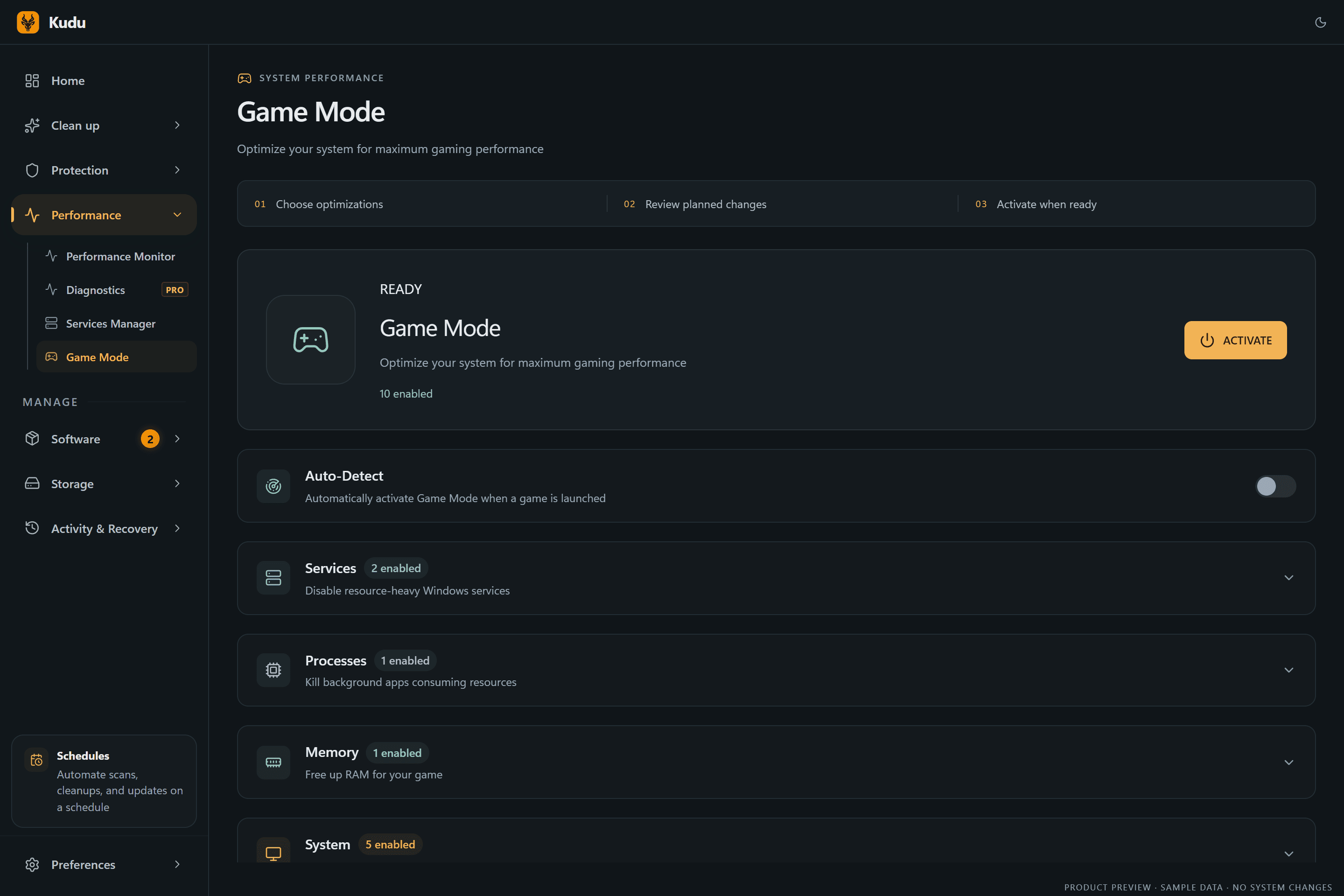
Kudu’s Game Mode applies supported Windows gaming tweaks and records how to restore them. It does not promise FPS gains; drivers and in-game settings still matter.
Download Kudu Free →How Game Mode worksWhat Causes This?
Apex Legends™ stutter often comes from shader compilation after a game update, unstable graphics settings, or background apps competing with the game and Easy Anti-Cheat. On PC, big frame-time spikes can also show up when GPU drivers are outdated, Windows overlays hook into the game, or the game files are damaged.
More generally, FPS drops and hitching can come from CPU or GPU thermal throttling, too little free RAM, heavy disk activity, or corrupted driver caches. Network issues can cause rubber-banding, but they do not usually explain local frame-time stutter by themselves.
Common Symptoms
- Smooth FPS at first, then sudden hitching during fights or when landing.
- Frame drops after a game patch or graphics driver update.
- Micro-stutter when opening inventory, loading into a match, or moving through new areas.
- High CPU or disk usage from other apps while Apex Legends™ is running.
- Stutter that improves after restarting the game, then returns later.
How to Fix It Manually
-
Verify the game files in Steam. In Steam, open Library > right-click Apex Legends™ > Properties > Installed Files > Verify integrity of game files. This checks for broken or missing files after updates.
-
Lower the settings that most often cause frame-time spikes. Start with a lower or capped frame rate, lower shadow-heavy settings, and disable extra visual effects if you have them turned up. If you use a variable refresh display, test with V-Sync off in-game first, then cap FPS to a stable value your system can hold rather than chasing the highest number.
-
Let shader compilation finish and clear old GPU shader cache if needed. After a major game or driver update, the first few matches may stutter while shaders rebuild. If stutter started right after a driver change, clear the GPU shader cache using the GPU vendor’s supported method or Windows Disk Cleanup if that option is present, then reboot and launch the game again. See NVIDIA, AMD, and Intel support pages for current cache-handling steps.
-
Repair or reinstall Easy Anti-Cheat if the game is hitching on launch or during matchmaking. Easy Anti-Cheat problems can cause abnormal startup behavior or repeated interruptions. Use the game’s installed Easy Anti-Cheat setup tool if present in the game folder, or reinstall the game if you cannot access a repair option.
-
Disable overlays and close background capture tools. Turn off the Steam Overlay for testing, and close Discord overlay, Xbox Game Bar capture, browser streams, RGB utilities, and GPU tuning overlays one by one. Microsoft documents Xbox Game Bar and Game Bar capture settings in Windows support articles.
-
Update your GPU driver and reboot. Install the latest stable driver directly from NVIDIA, AMD, or Intel, then restart Windows. If the problem began immediately after a new driver, try a clean reinstall using the vendor’s installer options if available.
-
Check Windows for background load and storage issues. Open Task Manager and watch CPU, memory, disk, and GPU usage while the game is running. If another process spikes when Apex stutters, close or disable it; if the game is on a very full or slow drive, free space and keep the game on a healthy SSD if possible.
-
Repair Windows system files if stutter started across multiple games. Run sfc /scannow and then DISM health repair commands from an elevated Command Prompt, following Microsoft’s guidance. This will not fix every game issue, but it can help if Windows components used by drivers or anti-cheat are damaged.
Where Kudu Helps
Kudu can help you narrow down background causes instead of guessing. Use Performance Monitor to see which processes are consuming the most CPU or memory while Apex Legends™ stutters, and use Startup Manager to disable non-essential launchers, overlays, and auto-start apps that keep loading with Windows.
If shader cache corruption is suspected after a driver or game update, Kudu’s System Cleaner can scan supported GPU shader caches and list them for review before deletion. On Windows, Game Mode can also apply supported gaming tweaks and record how to restore them later.
Frequently asked questions
- Why does Apex Legends™ stutter after an update?
- A game update can trigger shader recompilation, and that often causes temporary hitching for the first few matches. Damaged files or a driver cache conflict can make it last longer, so verifying files and clearing supported shader caches can help.
- Should I clear the shader cache for Apex Legends™?
- It can help if stutter started after a GPU driver update or if the cache became corrupted. Use the GPU vendor’s supported method or Windows cleanup tools rather than deleting random folders manually.
- Can Easy Anti-Cheat cause FPS drops in Apex Legends™?
- It can contribute to abnormal hitching if its files are damaged or if another app conflicts with it. Repairing the anti-cheat component, verifying game files, and disabling overlays are the safest first checks.
Game Mode
Apply gaming tweaks you can undo
Kudu’s Game Mode applies supported Windows gaming tweaks and records how to restore them. It does not promise FPS gains; drivers and in-game settings still matter.
Download Kudu Free →How Game Mode worksRelated guides
How to Fix AION 2 Stuttering and FPS Drops on PC
Reduce stutter, frame drops, and hitching in AION 2 on Windows with driver, shader cache, background app, and in-game settings checks.
How to Fix ARC Raiders Stuttering and FPS Drops on PC
Reduce stutter, frame drops, and hitching in ARC Raiders on Windows with driver, shader cache, background app, and in-game settings checks.
How to Fix Counter-Strike 2 Stuttering and FPS Drops on PC
Reduce stutter, frame drops, and hitching in Counter-Strike 2 on Windows with driver, shader cache, background app, and in-game settings checks.
How to Fix Deadlock Stuttering and FPS Drops on PC
Reduce stutter, frame drops, and hitching in Deadlock on Windows with driver, shader cache, background app, and in-game settings checks.