How to Fix AION 2 Stuttering and FPS Drops on PC
Reduce stutter, frame drops, and hitching in AION 2 on Windows with driver, shader cache, background app, and in-game settings checks.
By Kudu Team · Reviewed
Game Mode
Apply gaming tweaks you can undo
Kudu’s Game Mode applies supported Windows gaming tweaks and records how to restore them. It does not promise FPS gains; drivers and in-game settings still matter.
Download Kudu Free →How Game Mode worksWhat Causes This?
AION 2 runs on Unreal Engine 5, so stutter often comes from shader compilation, asset streaming, and heavy scene changes during large faction fights or busy hub areas. On a new install or after a game update, hitching can be worse while the game builds or rebuilds shader-related data.
General causes also include outdated GPU drivers, corrupted game files, overlays and capture tools, background CPU or disk load, Windows power settings, and unstable frame pacing from overly aggressive graphics settings.
Common Symptoms
- Short freezes or hitches when entering new areas, turning the camera, or starting combat.
- FPS drops during large PvP battles, crowded towns, or effects-heavy encounters.
- Smooth performance in empty areas but poor frame pacing in populated zones.
- High CPU, GPU, or disk usage in the background while the game is running.
- Stutter that starts after a patch, driver update, or graphics settings change.
How to Fix It Manually
-
Verify the game files in Steam. Corrupted or incomplete files can cause hitching after updates. In Steam, open Library > right-click AION 2 > Properties > Installed Files > Verify integrity of game files. Steam’s official help covers file verification and related download checks.
-
Lower the settings that usually hurt frame pacing first. In Unreal Engine 5 games, start by reducing shadows, effects, view distance, post-processing, and any upscaling/frame generation options if they seem to introduce instability on your system. If the game offers a shader precompile step, let it finish before playing; if not, expect some early-session stutter after patches.
-
Clear the GPU shader cache, then reboot. Broken or outdated shader cache data can cause repeated hitching after a driver or game update. Use your GPU vendor’s normal cache reset method or Windows Disk Cleanup if it offers a DirectX shader cache option, then restart the PC so the cache can rebuild cleanly. NVIDIA, AMD, and Intel all publish driver and support documentation for clean driver maintenance and graphics troubleshooting.
-
Check anti-cheat and overlays. If AION 2 uses an anti-cheat component, let Steam finish installing or repairing it and restart the game afterward. Then disable non-essential overlays and injectors one by one—Steam overlay, Discord overlay, GeForce Experience/NVIDIA App overlay, AMD overlay, Xbox Game Bar, RGB tools, and recording software are common causes of stutter or frametime spikes.
-
Update or clean-install your GPU driver if the issue started after a patch. Install the latest stable driver directly from NVIDIA, AMD, or Intel. If performance got worse after a recent driver update, a clean reinstall can help remove bad cached settings and shader data; use the vendor’s official installer and release notes as your reference.
-
Use Windows gaming settings that reduce background interference. Turn Game Mode on in Windows and make sure the game is using the high-performance GPU on laptops or hybrid systems. Microsoft documents both Game Mode and graphics performance preferences in Windows support articles.
-
Close background apps that compete for CPU, memory, disk, or network use. Browsers with many tabs, launchers downloading updates, cloud sync apps, antivirus scans, and capture software can all cause stutter in MMOs. Check Task Manager while the game is running and stop only the non-essential tasks you recognize.
-
Repair Windows system files if stutter appears across multiple games. If AION 2 is not the only title affected, run SFC /scannow and DISM /Online /Cleanup-Image /RestoreHealth from an elevated Command Prompt, then reboot. Microsoft’s support documentation covers both tools and when to use them.
Where Kudu Helps
Kudu can help you cut down common PC-side causes of stutter without guessing. Use System Cleaner to clear supported GPU shader caches, Performance Monitor to spot background CPU or memory spikes while AION 2 is running, and Startup Manager to disable non-essential apps that keep loading with Windows.
On Windows, Game Mode in Kudu can apply supported gaming-related tweaks and record how to restore them later. It will not promise more FPS, but it can help you rule out common system-side issues faster.
Frequently asked questions
- Why does AION 2 stutter more after an update?
- Updates can invalidate shader cache data or change how assets are compiled and streamed. The first play session after a patch is often the worst, especially in a UE5 game.
- Should I delete all cache files to fix AION 2 FPS drops?
- No. Start with the game’s file verification and supported GPU shader cache cleanup instead of deleting random folders. Broad cache deletion can remove useful data without fixing the real cause.
- Why is AION 2 smooth alone but stutters in cities or faction battles?
- That usually points to CPU load, asset streaming, and effects density rather than a simple GPU limit. Lower crowd-heavy settings like shadows, effects, and view distance first, then check for background CPU usage.
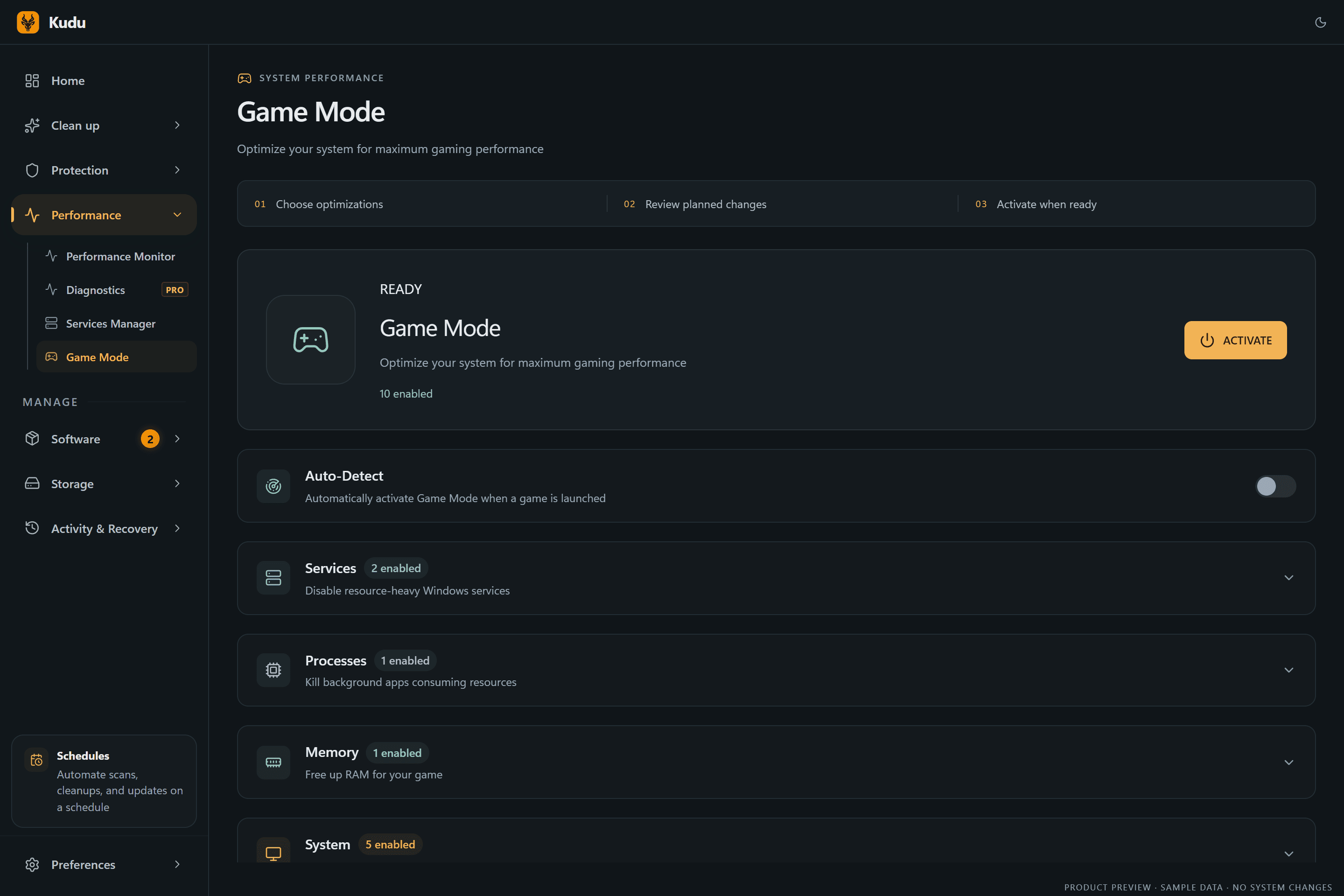
Game Mode
Apply gaming tweaks you can undo
Kudu’s Game Mode applies supported Windows gaming tweaks and records how to restore them. It does not promise FPS gains; drivers and in-game settings still matter.
Download Kudu Free →How Game Mode worksRelated guides
How to Fix Apex Legends™ Stuttering and FPS Drops on PC
Reduce stutter, frame drops, and hitching in Apex Legends™ on Windows with driver, shader cache, background app, and in-game settings checks.
How to Fix ARC Raiders Stuttering and FPS Drops on PC
Reduce stutter, frame drops, and hitching in ARC Raiders on Windows with driver, shader cache, background app, and in-game settings checks.
How to Fix Counter-Strike 2 Stuttering and FPS Drops on PC
Reduce stutter, frame drops, and hitching in Counter-Strike 2 on Windows with driver, shader cache, background app, and in-game settings checks.
How to Fix Deadlock Stuttering and FPS Drops on PC
Reduce stutter, frame drops, and hitching in Deadlock on Windows with driver, shader cache, background app, and in-game settings checks.