How to Fix PUBG: BATTLEGROUNDS Stuttering and FPS Drops on PC
Reduce stutter, frame drops, and hitching in PUBG: BATTLEGROUNDS on Windows with driver, shader cache, background app, and in-game settings checks.
By Kudu Team · Reviewed
Game Mode
Apply gaming tweaks you can undo
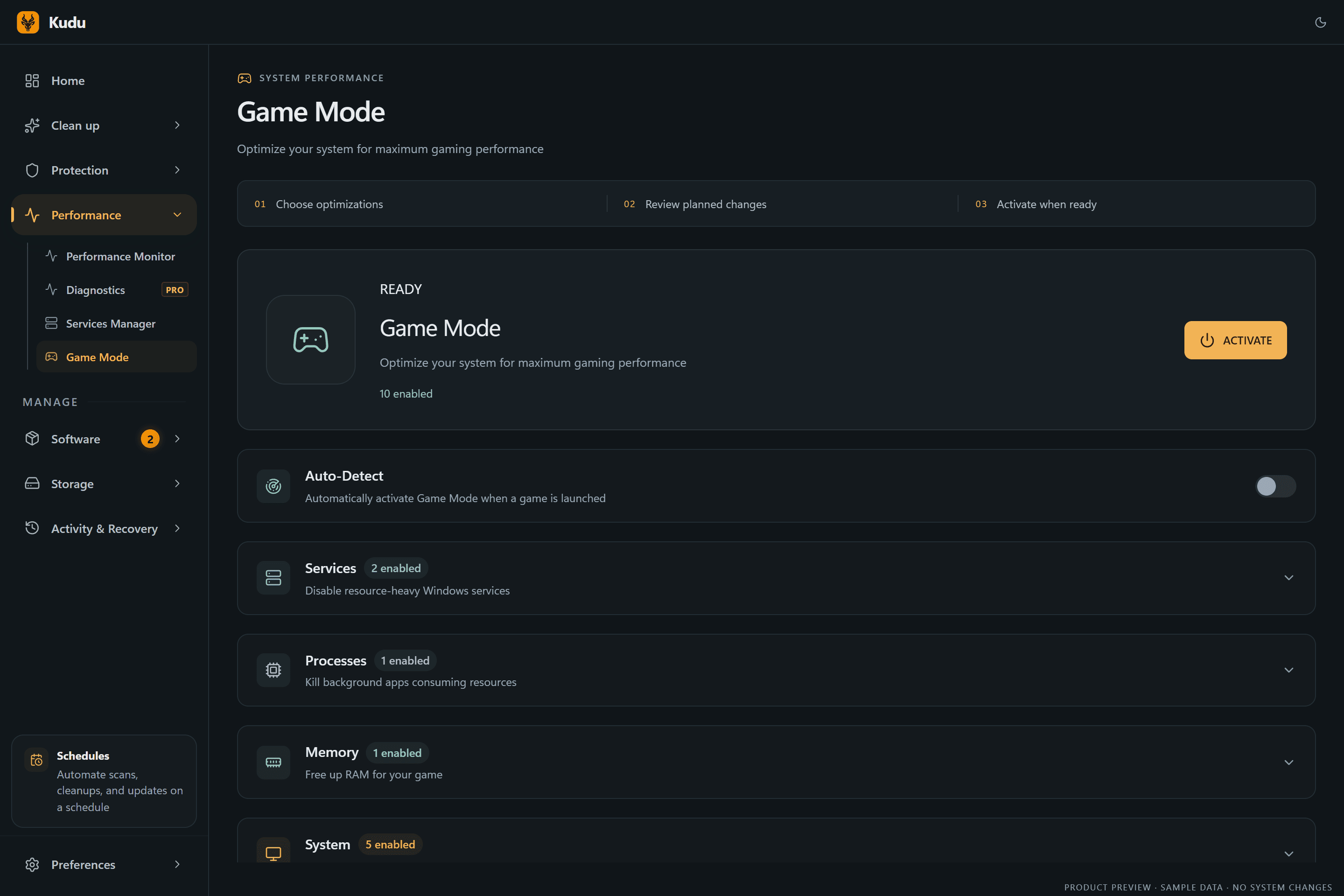
Kudu’s Game Mode applies supported Windows gaming tweaks and records how to restore them. It does not promise FPS gains; drivers and in-game settings still matter.
Download Kudu Free →How Game Mode worksWhat Causes This?
PUBG: BATTLEGROUNDS stutter often comes from shader compilation, unstable graphics settings, corrupted game files, or conflicts with overlays and anti-cheat-related background hooks. Because PUBG is a large online shooter with frequent updates, hitching can also show up after a patch when cached shader data or driver state no longer matches the current build.
More generally, FPS drops on PC are commonly caused by outdated GPU drivers, high background CPU or disk usage, Windows power settings, thermal throttling, or too little available RAM or VRAM.
Common Symptoms
- Short freezes or hitching when landing, looting, or entering a new area.
- FPS drops during gunfights, smoke, vehicles, or when many players are nearby.
- Smooth menus but inconsistent frame pacing in matches.
- High CPU usage, high disk activity, or sudden spikes from background apps while PUBG is running.
- Worse performance after a game update or GPU driver update.
How to Fix It Manually
-
Verify PUBG game files in Steam. In Steam, open Library > right-click PUBG: BATTLEGROUNDS > Properties > Installed Files > Verify integrity of game files. This checks for broken or missing files after updates. Steam’s official help covers file verification: https://help.steampowered.com/
-
Lower settings that usually cause the biggest drops, then test one match. Start with a lower Render Scale only if you need it, and reduce heavier options such as shadows, effects, foliage, and view-distance-related settings before lowering everything at once. If you use an FPS cap, test with a stable cap your system can actually hold rather than letting frame rate swing wildly.
-
Clear and rebuild the GPU shader cache. Corrupted or outdated shader cache data can cause hitching after patches or driver changes. Use your GPU vendor’s normal method or Windows cleanup tools rather than deleting random folders by hand. Official docs: NVIDIA Control Panel help and driver support pages at https://www.nvidia.com/Download/index.aspx, AMD support at https://www.amd.com/en/support, Intel graphics support at https://www.intel.com/content/www/us/en/support/products/80939/graphics.html
-
Disable overlays and capture tools, then restart PUBG. Turn off the Steam Overlay first and test. Also close or disable other overlays and recording tools such as GPU performance overlays, chat overlays, RGB control suites, or game capture apps, since these can conflict with PUBG’s anti-cheat or add frametime spikes.
-
Repair your anti-cheat environment by removing conflicts, not by modifying game files. Make sure Windows is fully updated, reboot the PC, and close software that injects into games, including some monitoring, macro, or overlay tools. Do not replace anti-cheat files or use unofficial executables.
-
Update to a current stable GPU driver, or roll back if the issue started right after an update. Use NVIDIA, AMD, or Intel’s official driver pages only. If stutter began immediately after a new driver install, testing the previous stable driver is reasonable.
-
Set Windows to avoid background interruptions. Enable Game Mode in Windows, make sure PUBG is using the high-performance GPU on laptops, and use a power mode that does not aggressively downclock the CPU or GPU while gaming. Microsoft’s Windows gaming and graphics settings documentation is the best reference: https://support.microsoft.com/windows
-
Check for background CPU, RAM, and disk pressure. Before launching PUBG, close browsers, launchers you are not using, cloud sync tools, and large downloads. If the game stutters when storage activity spikes, make sure PUBG and the page file are on a healthy drive with free space available.
Where Kudu Helps
Kudu can help you spot non-game causes of PUBG stutter. Use Performance Monitor to see if another process is spiking CPU, memory, disk, or network usage during matches, and use Startup Manager to disable unnecessary apps that load with Windows.
If shader cache corruption is part of the problem, Kudu’s System Cleaner can scan supported GPU shader caches so you can review and clear them safely. On Windows, Game Mode in Kudu can also apply supported gaming tweaks and record how to restore them later.
Frequently asked questions
- Why does PUBG stutter after an update?
- A patch can invalidate cached shader data or expose a driver issue that was not obvious before. Verify the game files, rebuild the GPU shader cache, and test a current stable graphics driver.
- Should I use DirectX launch options to fix PUBG FPS drops?
- Only use launch options if PUBG or the developer officially recommends them for your current build. If you are not sure, stick to file verification, driver checks, overlays, and in-game settings first.
- Can anti-cheat cause PUBG stutter on PC?
- It can contribute indirectly if another app conflicts with it or injects into the game. Close overlays, macro tools, and unnecessary monitoring software, then reboot and test again.
Game Mode
Apply gaming tweaks you can undo
Kudu’s Game Mode applies supported Windows gaming tweaks and records how to restore them. It does not promise FPS gains; drivers and in-game settings still matter.
Download Kudu Free →How Game Mode worksRelated guides
How to Fix AION 2 Stuttering and FPS Drops on PC
Reduce stutter, frame drops, and hitching in AION 2 on Windows with driver, shader cache, background app, and in-game settings checks.
How to Fix Apex Legends™ Stuttering and FPS Drops on PC
Reduce stutter, frame drops, and hitching in Apex Legends™ on Windows with driver, shader cache, background app, and in-game settings checks.
How to Fix ARC Raiders Stuttering and FPS Drops on PC
Reduce stutter, frame drops, and hitching in ARC Raiders on Windows with driver, shader cache, background app, and in-game settings checks.
How to Fix Counter-Strike 2 Stuttering and FPS Drops on PC
Reduce stutter, frame drops, and hitching in Counter-Strike 2 on Windows with driver, shader cache, background app, and in-game settings checks.