How to Fix Grand Theft Auto V Legacy Stuttering and FPS Drops on PC
Reduce stutter, frame drops, and hitching in Grand Theft Auto V Legacy on Windows with driver, shader cache, background app, and in-game settings checks.
By Kudu Team · Reviewed
Game Mode
Apply gaming tweaks you can undo
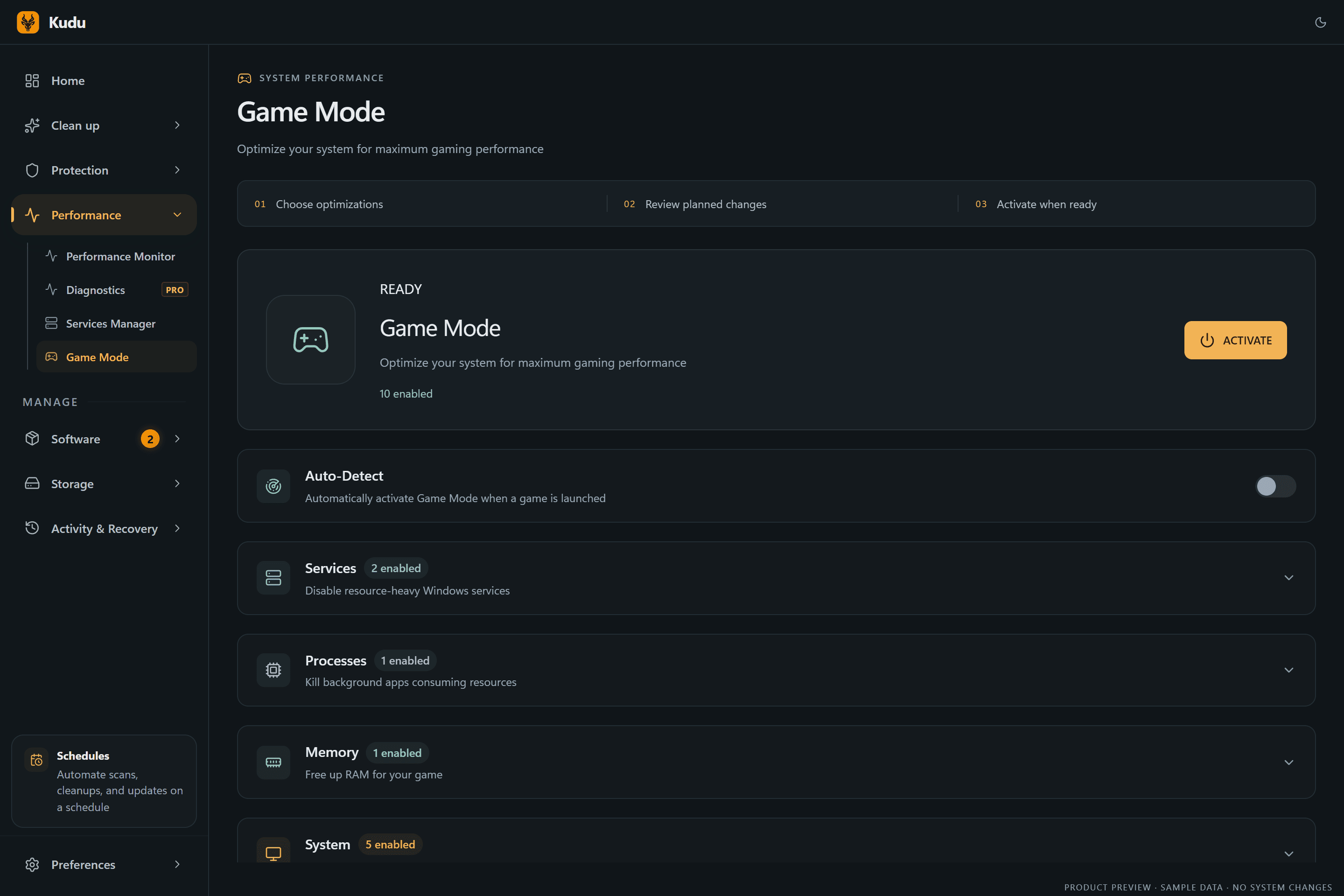
Kudu’s Game Mode applies supported Windows gaming tweaks and records how to restore them. It does not promise FPS gains; drivers and in-game settings still matter.
Download Kudu Free →How Game Mode worksWhat Causes This?
Grand Theft Auto V on PC can stutter when its graphics settings are pushed past available VRAM, especially with high population, distance scaling, advanced graphics options, or very high resolution. On Steam installs, corrupted game files, a bad shader cache, or overlays and capture tools can also cause hitching during driving, loading new areas, or entering online sessions.
More generally, FPS drops also come from outdated GPU drivers, Windows background tasks, unstable overclocks, power-saving settings, or storage issues. If the game recently started stuttering after an update, driver cache rebuilds and launcher file verification are good first checks.
Common Symptoms
- Short freezes or hitching while driving quickly through the city.
- FPS drops when entering new areas, switching characters, or loading into GTA Online.
- Smooth performance indoors but heavy stutter outdoors or during explosions and traffic-heavy scenes.
- Frame pacing feels uneven even when the average FPS looks acceptable.
- Stutter starts after a driver update, graphics setting change, or installing background software.
How to Fix It Manually
-
Verify the game files in Steam. In Steam, open Library > right-click Grand Theft Auto V > Properties > Installed Files > Verify integrity of game files. This checks for damaged or missing files and is the safest first step for sudden stutter after an update.
-
Lower the settings that most often cause GTA V stutter. Start by reducing Population Density, Population Variety, Distance Scaling, Grass Quality, and any Advanced Graphics options you enabled. Watch the in-game VRAM usage bar and keep some headroom instead of filling it to the limit, because GTA V often becomes uneven when VRAM is nearly maxed out.
-
Turn off extra overlays and capture tools. Disable the Steam Overlay for testing, and close other overlays such as GPU utilities, chat overlays, or recording tools if you use them. These can cause frame-time spikes even when average FPS stays high.
-
Clear and rebuild the GPU shader cache. On NVIDIA, you can clear the DirectX shader cache through Windows Disk Cleanup or Windows Storage temporary files if that option appears; NVIDIA also documents shader cache behavior in its Control Panel help. On AMD, reset the shader cache from AMD Software if the option is available in your driver version. After clearing it, launch the game and expect the first run to be less smooth while caches rebuild. See Microsoft temporary files guidance and your GPU vendor support pages for current steps.
-
Update or clean-install your graphics driver if stutter started recently. Install the latest stable driver from NVIDIA, AMD, or Intel. If the issue began right after a driver update, try a clean installation option if your vendor provides one, or test a newer stable release from the official vendor site.
-
Check Windows power and background load. Set Windows to a normal high-performance power mode if available on your system, then close browsers, launchers, sync apps, and other heavy background tasks. Microsoft’s support docs for Windows power and startup apps are the right reference here because menu names can vary by Windows version.
-
Make sure the game is installed on a healthy SSD and check Windows system files if stutter affects other games too. If GTA V is on a slow or failing drive, streaming stutter is more likely. If multiple games are affected, run SFC /scannow and DISM /Online /Cleanup-Image /RestoreHealth using Microsoft’s documented steps before assuming the game itself is at fault.
Where Kudu Helps
Kudu can help you test the usual PC-side causes without guessing. Use Performance Monitor to spot background CPU, memory, disk, or network load while GTA V is stuttering, Startup Manager to disable non-essential apps that keep launching with Windows, and System Cleaner to clear supported GPU shader caches so the game can rebuild them cleanly.
Game Mode can also apply supported Windows gaming tweaks and record how to restore them later, which is useful for controlled testing rather than random changes.
Frequently asked questions
- Why does GTA V stutter even when my FPS looks high?
- That is usually frame-time instability rather than low average FPS. In GTA V, high population, distance scaling, overlays, or a rebuilding shader cache can cause uneven pacing even when the FPS counter still looks good.
- Should I clear the shader cache for GTA V?
- Yes, if stutter started after a driver update or the game began hitching unexpectedly. The first launch after clearing it may be less smooth while the cache rebuilds.
- What graphics settings matter most for GTA V stutter on PC?
- Population Density, Population Variety, Distance Scaling, Grass Quality, and Advanced Graphics options are common problem settings. Keeping VRAM usage below the limit is also important for smoother performance.
Game Mode
Apply gaming tweaks you can undo
Kudu’s Game Mode applies supported Windows gaming tweaks and records how to restore them. It does not promise FPS gains; drivers and in-game settings still matter.
Download Kudu Free →How Game Mode worksRelated guides
How to Fix Grand Theft Auto V Legacy Crashing on PC
Troubleshoot Grand Theft Auto V Legacy crashing to desktop, freezing, or closing on Windows: file verification, drivers, overlays, and logs.
How to Fix AION 2 Stuttering and FPS Drops on PC
Reduce stutter, frame drops, and hitching in AION 2 on Windows with driver, shader cache, background app, and in-game settings checks.
How to Fix Apex Legends™ Stuttering and FPS Drops on PC
Reduce stutter, frame drops, and hitching in Apex Legends™ on Windows with driver, shader cache, background app, and in-game settings checks.
How to Fix ARC Raiders Stuttering and FPS Drops on PC
Reduce stutter, frame drops, and hitching in ARC Raiders on Windows with driver, shader cache, background app, and in-game settings checks.