How to Fix Grand Theft Auto V Legacy Crashing on PC
Troubleshoot Grand Theft Auto V Legacy crashing to desktop, freezing, or closing on Windows: file verification, drivers, overlays, and logs.
By Kudu Team · Reviewed
Game Mode
Apply gaming tweaks you can undo
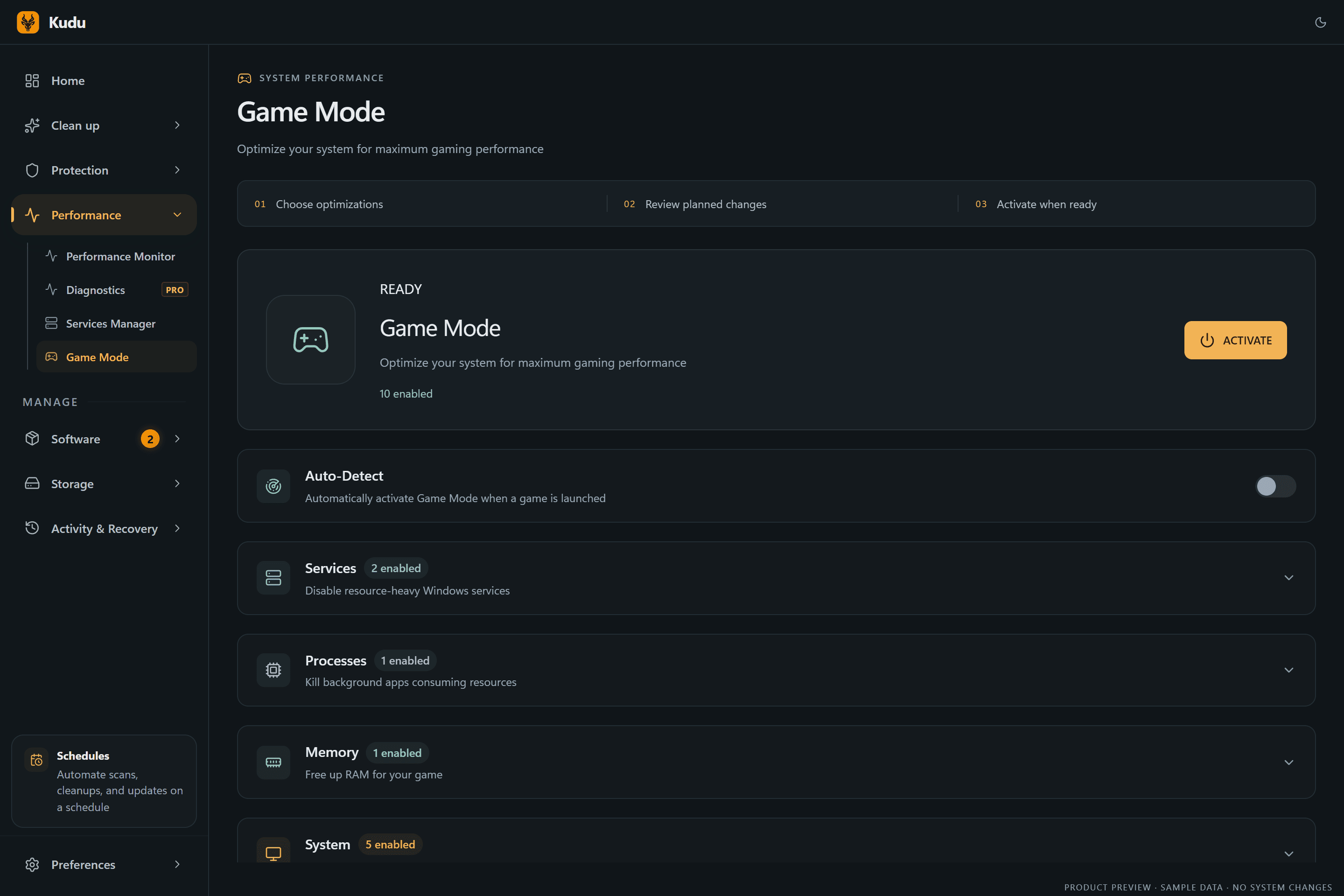
Kudu’s Game Mode applies supported Windows gaming tweaks and records how to restore them. It does not promise FPS gains; drivers and in-game settings still matter.
Download Kudu Free →How Game Mode worksWhat Causes This?
Grand Theft Auto V Legacy on PC often crashes because of corrupted game files, graphics driver issues, or conflicts with overlays and injected tools. GTA V is also sensitive to unstable graphics settings, especially when VRAM use is pushed too high or advanced graphics options are changed after a driver update.
More generally, crashes can come from damaged shader caches, missing Windows components, background apps hooking into the game, or system file problems. If the game closes without an error, start with the launcher, graphics driver, and overlays before changing deeper Windows settings.
Common Symptoms
- The game crashes to desktop during startup or after the Rockstar launcher opens.
- The screen freezes for a few seconds, then GTA V closes with no message.
- Crashes happen when loading Story Mode, entering Online, or changing graphics settings.
- The game runs for a while, then closes during driving, cutscenes, or after alt-tabbing.
- You see stutter, texture pop-in, or black screens before the crash.
How to Fix It Manually
-
Verify the game files in Steam. In Steam, open Library > right-click Grand Theft Auto V Legacy > Properties > Installed Files > Verify integrity of game files. This checks for missing or damaged files and is the safest first step. Steam’s official help covers file verification: https://help.steampowered.com/
-
Turn down unstable graphics settings and test with defaults. If the game crashes after loading, lower texture quality, grass quality, and any advanced graphics options you changed recently. Pay attention to the VRAM bar in GTA V’s graphics menu and avoid pushing it to the limit; if needed, switch to borderless or fullscreen and test again.
-
Disable overlays and background injectors. Turn off the Steam Overlay for GTA V from the game’s Steam properties and close other overlay software such as GPU monitoring tools, RGB utilities, recording apps, or chat overlays. These can hook into DirectX and cause startup crashes or random closes.
-
Clear the GPU shader cache, then reboot. Corrupted shader cache data can cause crashes after driver updates or game patches. Use your GPU vendor’s normal cache reset option if available, or clear supported GPU shader caches with a maintenance tool, then restart Windows before launching the game again.
-
Update to the latest stable graphics driver and install Windows updates. Get the current driver directly from NVIDIA, AMD, or Intel rather than third-party sites. If crashes started right after a driver update, a clean reinstall can help; also install pending Windows updates from Microsoft because GTA V depends on current graphics and system components.
-
Repair Windows system files. Open Command Prompt as administrator and run
sfc /scannow. If SFC reports problems it cannot fix, runDISM /Online /Cleanup-Image /RestoreHealthand then run SFC again. Microsoft documents both tools here: https://support.microsoft.com/ and https://learn.microsoft.com/windows/ -
Check for heavy background load and clean boot conflicts. If the game crashes only when other apps are open, close browsers, launchers you are not using, and recording or streaming tools. A clean boot can help confirm whether a non-Microsoft startup app or service is interfering; Microsoft provides clean boot guidance here: https://support.microsoft.com/
Where Kudu Helps
Kudu can help you narrow this down without guessing. Use System Cleaner to review and clear supported GPU shader caches, Performance Monitor to see whether another process is spiking CPU or memory while GTA V crashes, and Startup Manager to disable non-essential apps that load with Windows.
If you want to test with fewer background conflicts, Kudu’s Game Mode can apply supported gaming tweaks and record how to restore them later. Download Kudu Free →
Frequently asked questions
- Why does GTA V Legacy crash on startup on PC?
- The most common causes are corrupted game files, overlay conflicts, and graphics driver problems. Start by verifying the game in Steam, disabling overlays, and updating or reinstalling your GPU driver.
- Can shader cache cause Grand Theft Auto V Legacy to crash?
- Yes. A damaged shader cache can cause startup crashes, stutter before a crash, or instability after a driver update. Clearing the GPU shader cache and rebooting is a safe troubleshooting step.
- Should I reinstall GTA V Legacy if it keeps crashing?
- Not first. Verify the files, lower graphics settings, disable overlays, and check drivers before doing a full reinstall. Reinstalling takes longer and often does not fix a driver or background app conflict.
Game Mode
Apply gaming tweaks you can undo
Kudu’s Game Mode applies supported Windows gaming tweaks and records how to restore them. It does not promise FPS gains; drivers and in-game settings still matter.
Download Kudu Free →How Game Mode worksRelated guides
How to Fix Grand Theft Auto V Legacy Stuttering and FPS Drops on PC
Reduce stutter, frame drops, and hitching in Grand Theft Auto V Legacy on Windows with driver, shader cache, background app, and in-game settings checks.
How to Fix AION 2 Crashing on PC
Troubleshoot AION 2 crashing to desktop, freezing, or closing on Windows: file verification, drivers, overlays, and logs.
How to Fix Apex Legends™ Crashing on PC
Troubleshoot Apex Legends™ crashing to desktop, freezing, or closing on Windows: file verification, drivers, overlays, and logs.
How to Fix ARC Raiders Crashing on PC
Troubleshoot ARC Raiders crashing to desktop, freezing, or closing on Windows: file verification, drivers, overlays, and logs.