How to Fix Apex Legends™ Crashing on PC
Troubleshoot Apex Legends™ crashing to desktop, freezing, or closing on Windows: file verification, drivers, overlays, and logs.
By Kudu Team · Reviewed
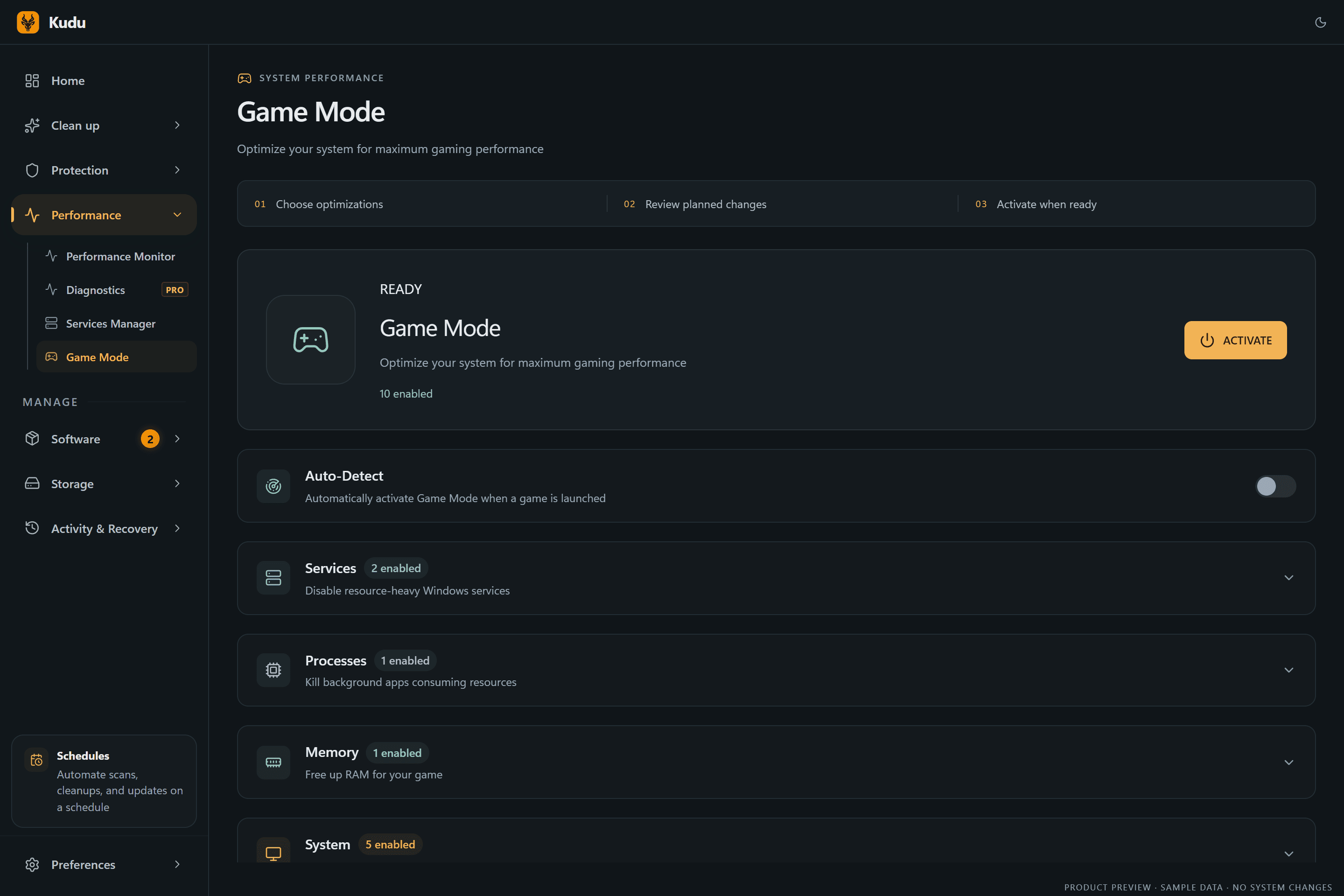
Game Mode
Apply gaming tweaks you can undo
Kudu’s Game Mode applies supported Windows gaming tweaks and records how to restore them. It does not promise FPS gains; drivers and in-game settings still matter.
Download Kudu Free →How Game Mode worksWhat Causes This?
Apex Legends crashes on PC are often tied to corrupted game files after updates, shader compilation problems, overlay conflicts, or Easy Anti-Cheat issues. Because Apex is a live service game that updates often, mismatches between the game build, GPU driver state, and cached shader data can also cause sudden crashes to desktop or freezes during loading.
More general causes include unstable overclocks, damaged Windows system files, background apps hooking into the game, and outdated graphics drivers. If the game closes without an error, check both the launcher side and Windows before assuming the install is bad.
Common Symptoms
- Apex Legends closes to desktop during startup or after the splash screen.
- The game freezes on loading screens, in the lobby, or when entering a match.
- Crashes happen after a game update or GPU driver update.
- The game runs for a few minutes, then closes with no clear error message.
- Stutter appears first, followed by a freeze or full crash.
How to Fix It Manually
-
Verify Apex Legends files in Steam.
In Steam, open Library > right-click Apex Legends > Properties > Installed Files > Verify integrity of game files. This is the first thing to do after a patch or if the game suddenly starts crashing. Steam will re-download broken or missing files if it finds any. -
Disable overlays and background injectors.
Turn off the Steam Overlay for Apex Legends in the game’s Steam properties, and temporarily disable other overlays such as Discord, GeForce Experience, MSI Afterburner/RivaTuner, or similar tools if you use them. These can conflict with Apex or Easy Anti-Cheat and cause startup crashes or random closes. -
Repair Easy Anti-Cheat.
Apex Legends uses Easy Anti-Cheat, and a damaged install can stop the game from launching correctly. In the Apex installation folder, look for the Easy Anti-Cheat installer or repair tool and run the repair option if it is present. If you cannot find it, reinstalling the game or verifying files through Steam is the safer fallback. -
Reset the GPU shader cache.
Corrupted shader cache data can cause crashes, hitching, or freezes after updates. Use your GPU vendor’s normal cache reset method if available, or use Windows Disk Cleanup to clear DirectX Shader Cache. Microsoft documents Disk Cleanup here: https://support.microsoft.com/windows/free-up-drive-space-in-windows -
Lower unstable graphics settings and remove overclocks.
If Apex crashes during matches rather than at launch, reduce a few heavy settings, test borderless or fullscreen if one mode is unstable, and remove any CPU, GPU, or RAM overclock while testing. Do the same for undervolts if you use them. Stability matters more than peak benchmark numbers here. -
Update or clean-install your graphics driver.
Install the latest stable driver directly from NVIDIA, AMD, or Intel rather than relying on Windows Update alone. If crashes started right after a driver update, a clean reinstall can help. Official driver pages: NVIDIA https://www.nvidia.com/Download/, AMD https://www.amd.com/en/support, Intel https://www.intel.com/content/www/us/en/download-center/home.html -
Check Windows system files and close unnecessary startup apps.
Open an elevated Command Prompt and runsfc /scannow, then if needed run DISM commands using Microsoft’s guidance: https://support.microsoft.com/windows/use-the-system-file-checker-tool-to-repair-missing-or-corrupted-system-files-79aa86cb-ca52-166a-92a3-966e85d4094e. Also test with non-essential startup apps disabled, especially RGB tools, hardware monitors, capture tools, and VPN software. -
Review crash details in Windows logs.
If Apex still crashes, open Event Viewer > Windows Logs > Application and look for an error at the crash time. Also check Reliability Monitor for a simpler timeline of failures. This can help you spot whether the fault points to the game, a driver, or another background process.
Where Kudu Helps
Kudu can help you narrow this down without guessing. Use System Cleaner to clear supported GPU shader caches, Performance Monitor to spot background apps using too much CPU or memory while Apex is running, and Startup Manager to disable non-essential launch-at-boot software that may conflict with the game.
On Windows, Game Mode can apply supported gaming tweaks and record how to restore them later, but it does not promise FPS gains. Kudu is most useful here for cleanup and isolating conflicts, not for replacing Steam file verification or driver updates.
Frequently asked questions
- Why does Apex Legends keep crashing after an update?
- Apex updates can leave behind broken files or outdated shader cache data. Verify the game in Steam first, then clear the shader cache and test again.
- Can overlays cause Apex Legends to crash?
- Yes. Steam Overlay, Discord overlay, GPU overlays, and monitoring tools can all interfere with Apex or Easy Anti-Cheat. Disable them temporarily to test.
- How do I check what caused Apex Legends to crash on Windows?
- Use Event Viewer and Reliability Monitor right after the crash. They can show whether the failure came from Apex itself, a graphics driver, or another process running in the background.
Game Mode
Apply gaming tweaks you can undo
Kudu’s Game Mode applies supported Windows gaming tweaks and records how to restore them. It does not promise FPS gains; drivers and in-game settings still matter.
Download Kudu Free →How Game Mode worksRelated guides
How to Fix Apex Legends™ Stuttering and FPS Drops on PC
Reduce stutter, frame drops, and hitching in Apex Legends™ on Windows with driver, shader cache, background app, and in-game settings checks.
How to Fix AION 2 Crashing on PC
Troubleshoot AION 2 crashing to desktop, freezing, or closing on Windows: file verification, drivers, overlays, and logs.
How to Fix ARC Raiders Crashing on PC
Troubleshoot ARC Raiders crashing to desktop, freezing, or closing on Windows: file verification, drivers, overlays, and logs.
How to Fix Counter-Strike 2 Crashing on PC
Troubleshoot Counter-Strike 2 crashing to desktop, freezing, or closing on Windows: file verification, drivers, overlays, and logs.