How to Fix Counter-Strike 2 Crashing on PC
Troubleshoot Counter-Strike 2 crashing to desktop, freezing, or closing on Windows: file verification, drivers, overlays, and logs.
By Kudu Team · Reviewed
Game Mode
Apply gaming tweaks you can undo
Kudu’s Game Mode applies supported Windows gaming tweaks and records how to restore them. It does not promise FPS gains; drivers and in-game settings still matter.
Download Kudu Free →How Game Mode worksWhat Causes This?
Counter-Strike 2 crashes are often tied to Steam file corruption, graphics driver problems, shader cache issues after a game or driver update, and conflicts from overlays or capture tools. Because CS2 is competitive and frequently updated, even small problems with launch options, background apps, or damaged local game data can cause sudden closes or freezes.
More general causes include unstable GPU settings, Windows system file corruption, security software interference, and missing updates for Windows or graphics drivers. If the game crashes only during matches, high CPU or memory load from other processes can also be a factor.
Common Symptoms
- The game closes to desktop during launch or while loading a map.
- CS2 freezes on a black screen or stops responding in the menu.
- Crashes happen after an update, driver install, or changing video settings.
- The game runs for a few minutes, then closes during a match.
- Steam shows the game as running briefly, then it stops without an error.
How to Fix It Manually
-
Verify the game files in Steam. In Steam, open Library > right-click Counter-Strike 2 > Properties > Installed Files > Verify integrity of game files. This is the first thing to do after a crash loop or failed update. Steam’s support docs cover file verification and general game troubleshooting.
-
Remove custom launch options and test with default settings. In Steam, open Counter-Strike 2 > Properties and clear any launch options you added for testing or old CS:GO tweaks. Old or aggressive options can cause instability after major engine updates.
-
Disable overlays and background injectors. Turn off the Steam Overlay for CS2 as a test, then close Discord overlay, GeForce Experience or NVIDIA App overlay, AMD overlay, MSI Afterburner, RivaTuner Statistics Server, and similar tools. Overlay and hook conflicts are a common cause of freezing, black screens, and instant closes in competitive games.
-
Clear the GPU shader cache, then reboot. Corrupted shader cache files can cause crashes after driver or game updates. Use Windows Disk Cleanup for DirectX Shader Cache, or the shader cache option in your GPU driver software if available from NVIDIA, AMD, or Intel. Do not delete random system folders manually.
-
Update or clean-install your graphics driver. Install the latest stable driver from NVIDIA, AMD, or Intel’s official site. If crashes started right after a driver update, try a clean installation option if your GPU vendor provides one, or roll back to the previous stable driver through Windows Device Manager if you know the issue began there.
-
Check Windows for corrupted system files. Open Command Prompt as administrator and run
sfc /scannow. If SFC reports problems it cannot fix, runDISM /Online /Cleanup-Image /RestoreHealthand then run SFC again. Microsoft documents both tools for repairing Windows component and system files. -
Turn off unstable GPU or RAM overclocks. If you use GPU overclocking, undervolting, XMP/EXPO memory profiles, or motherboard auto-overclock features, return to stock settings and test again. CS2 can expose marginal instability that other games do not.
-
Check crash information in Windows logs. Open Event Viewer > Windows Logs > Application and look for errors around the time of the crash, especially entries for
cs2.exe, Steam, graphics drivers, or runtime components. If you need a quick reliability view, Reliability Monitor in Windows can also help show when the crashes started.
Where Kudu Helps
Kudu can help you narrow down background conflicts by using Performance Monitor to spot CPU and memory-heavy processes while CS2 is running, and Startup Manager to disable non-essential apps that load with Windows. Its System Cleaner can also clear supported GPU shader caches without you digging through folders yourself, and Game Mode can apply supported Windows gaming tweaks with a record of how to restore them.
Frequently asked questions
- Why does Counter-Strike 2 keep crashing after an update?
- Updates can leave behind bad shader cache data, expose a driver bug, or conflict with old launch options. Verify the game files first, then clear shader cache and update or roll back your GPU driver if the crashes started immediately after the update.
- Can overlays make CS2 crash?
- Yes. Steam Overlay, Discord overlay, GPU driver overlays, and monitoring tools like MSI Afterburner or RivaTuner can all cause crashes or freezing in some setups. Disable them one by one and test the game.
- How do I check what caused a CS2 crash on Windows?
- Use Event Viewer under Windows Logs > Application and check Reliability Monitor for the time the crash happened. Look for entries tied to cs2.exe, Steam, or your graphics driver to identify the likely cause.
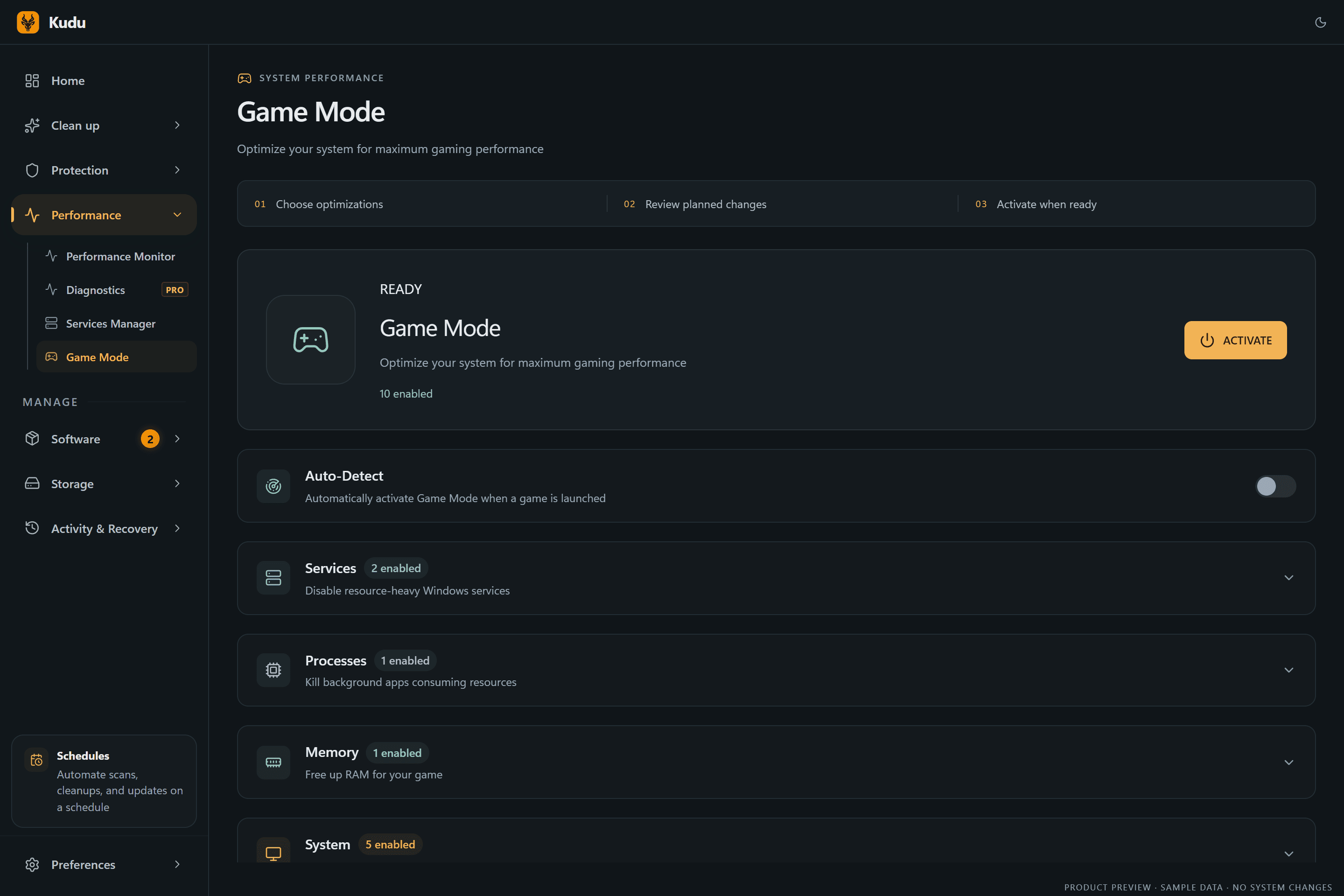
Game Mode
Apply gaming tweaks you can undo
Kudu’s Game Mode applies supported Windows gaming tweaks and records how to restore them. It does not promise FPS gains; drivers and in-game settings still matter.
Download Kudu Free →How Game Mode worksRelated guides
How to Fix AION 2 Crashing on PC
Troubleshoot AION 2 crashing to desktop, freezing, or closing on Windows: file verification, drivers, overlays, and logs.
How to Fix Apex Legends™ Crashing on PC
Troubleshoot Apex Legends™ crashing to desktop, freezing, or closing on Windows: file verification, drivers, overlays, and logs.
How to Fix ARC Raiders Crashing on PC
Troubleshoot ARC Raiders crashing to desktop, freezing, or closing on Windows: file verification, drivers, overlays, and logs.
How to Fix Counter-Strike 2 Stuttering and FPS Drops on PC
Reduce stutter, frame drops, and hitching in Counter-Strike 2 on Windows with driver, shader cache, background app, and in-game settings checks.