How to Fix Geometry Dash Stuttering and FPS Drops on PC
Reduce stutter, frame drops, and hitching in Geometry Dash on Windows with driver, shader cache, background app, and in-game settings checks.
By Kudu Team · Reviewed
Game Mode
Apply gaming tweaks you can undo
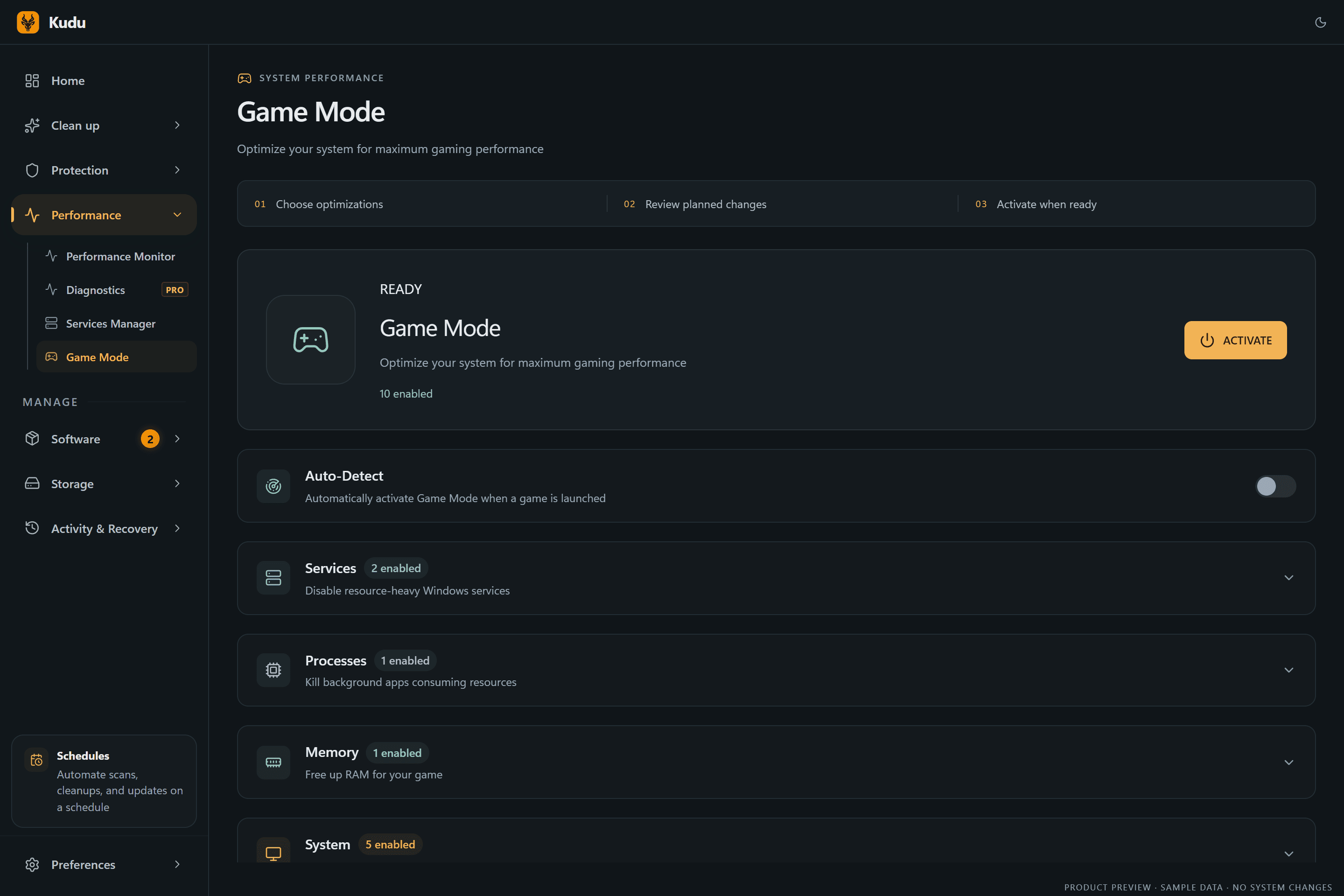
Kudu’s Game Mode applies supported Windows gaming tweaks and records how to restore them. It does not promise FPS gains; drivers and in-game settings still matter.
Download Kudu Free →How Game Mode worksWhat Causes This?
Geometry Dash is a lightweight game, so stuttering usually points to frame pacing issues rather than raw hardware limits. Common causes include corrupted game files, bad graphics driver state after an update, shader cache problems, overlays or recording tools hooking into the game, and background apps causing short CPU or disk spikes.
On Windows more broadly, FPS drops can also come from outdated GPU drivers, power-saving settings, unstable overclocks, too many startup apps, or storage problems. If the game used to run smoothly and suddenly does not, start with the game files and driver cache before changing deeper system settings.
Common Symptoms
- Short freezes or hitching during menus or level transitions.
- FPS drops after a driver update or Windows update.
- Smooth gameplay at first, then stutter after alt-tabbing or after playing for a while.
- Audio stays in sync but movement feels uneven or delayed.
- Stutter appears only when Steam Overlay, Discord, or recording software is open.
How to Fix It Manually
-
Verify Geometry Dash in Steam. In Steam, open Library > right-click Geometry Dash > Properties > Installed Files > Verify integrity of game files. This checks for damaged or missing files and is the safest first step. Steam documents the process here: https://help.steampowered.com/
-
Check the game’s video settings and test window mode changes. If you have stutter in fullscreen, test windowed or borderless if the game offers it. Also turn off extra visual options one at a time and restart the game after changes so you can tell which setting actually affects frame pacing.
-
Disable overlays and capture tools for a test run. Turn off Steam Overlay for the game in Properties and temporarily close Discord overlay, Xbox Game Bar captures, GeForce Experience overlay, Radeon overlay, MSI Afterburner/RivaTuner, and similar tools. Geometry Dash can stutter when multiple overlays hook into a simple 2D game.
-
Clear the GPU shader cache using the vendor-supported method. Corrupted shader cache data can cause hitching after driver changes. Use your GPU driver control panel or the driver’s own reset option rather than deleting random folders by hand. Official references: NVIDIA support and NVIDIA Control Panel help, AMD Adrenalin support, and Intel Graphics support pages.
-
Do a clean graphics driver update if stutter started after a driver change. Install the latest stable driver for your GPU directly from NVIDIA, AMD, or Intel. If the problem began right after updating, reinstalling the same driver cleanly or moving to another stable release can help. Vendor driver pages: https://www.nvidia.com/Download/, https://www.amd.com/en/support, https://www.intel.com/content/www/us/en/download-center/home.html
-
Set Windows to a stable power mode and close background load. On Windows, use Settings > System > Power & battery and select a higher-performance power mode if available. Then close browsers, launchers downloading updates, cloud sync apps, and anything causing CPU, memory, disk, or network spikes while you play.
-
Check for startup apps and scheduled tasks loading in the background. If stutter happens a few minutes after boot or at regular intervals, look for update agents, RGB tools, motherboard utilities, and game launcher helpers starting with Windows. Disable non-essential items and test again.
-
Repair Windows system files if stutter affects multiple games. If Geometry Dash is not the only game hitching, run SFC /scannow and, if needed, DISM /Online /Cleanup-Image /RestoreHealth from an elevated Command Prompt. Microsoft documents both tools here: https://support.microsoft.com/ and https://learn.microsoft.com/windows/
Where Kudu Helps
Kudu can help you narrow this down without guessing. Use Performance Monitor to watch CPU, memory, disk, and network activity while Geometry Dash stutters so you can spot background apps causing spikes, then use Startup Manager to disable non-essential items that keep loading with Windows.
If a driver update left behind bad cache data, Kudu’s System Cleaner can scan supported GPU shader caches for review before deletion. On Windows, Game Mode can also apply supported gaming tweaks and record how to restore them later.
Frequently asked questions
- Why does Geometry Dash stutter on a good PC?
- Usually because of frame pacing issues, overlays, driver cache problems, or background apps rather than lack of hardware power. Verify the game, disable overlays, and check GPU driver state first.
- Can shader cache cause Geometry Dash FPS drops?
- Yes. After a GPU driver update, corrupted or outdated shader cache data can cause hitching or uneven frame delivery. Clear it using your GPU vendor’s supported method and test again.
- Does verifying Geometry Dash files on Steam help with stutter?
- It can if the problem comes from damaged or missing game files. It is a safe first step and only takes a few minutes.
Game Mode
Apply gaming tweaks you can undo
Kudu’s Game Mode applies supported Windows gaming tweaks and records how to restore them. It does not promise FPS gains; drivers and in-game settings still matter.
Download Kudu Free →How Game Mode worksRelated guides
How to Fix AION 2 Stuttering and FPS Drops on PC
Reduce stutter, frame drops, and hitching in AION 2 on Windows with driver, shader cache, background app, and in-game settings checks.
How to Fix Apex Legends™ Stuttering and FPS Drops on PC
Reduce stutter, frame drops, and hitching in Apex Legends™ on Windows with driver, shader cache, background app, and in-game settings checks.
How to Fix ARC Raiders Stuttering and FPS Drops on PC
Reduce stutter, frame drops, and hitching in ARC Raiders on Windows with driver, shader cache, background app, and in-game settings checks.
How to Fix Counter-Strike 2 Stuttering and FPS Drops on PC
Reduce stutter, frame drops, and hitching in Counter-Strike 2 on Windows with driver, shader cache, background app, and in-game settings checks.