How to Fix Dota 2 Stuttering and FPS Drops on PC
Reduce stutter, frame drops, and hitching in Dota 2 on Windows with driver, shader cache, background app, and in-game settings checks.
By Kudu Team · Reviewed
Game Mode
Apply gaming tweaks you can undo
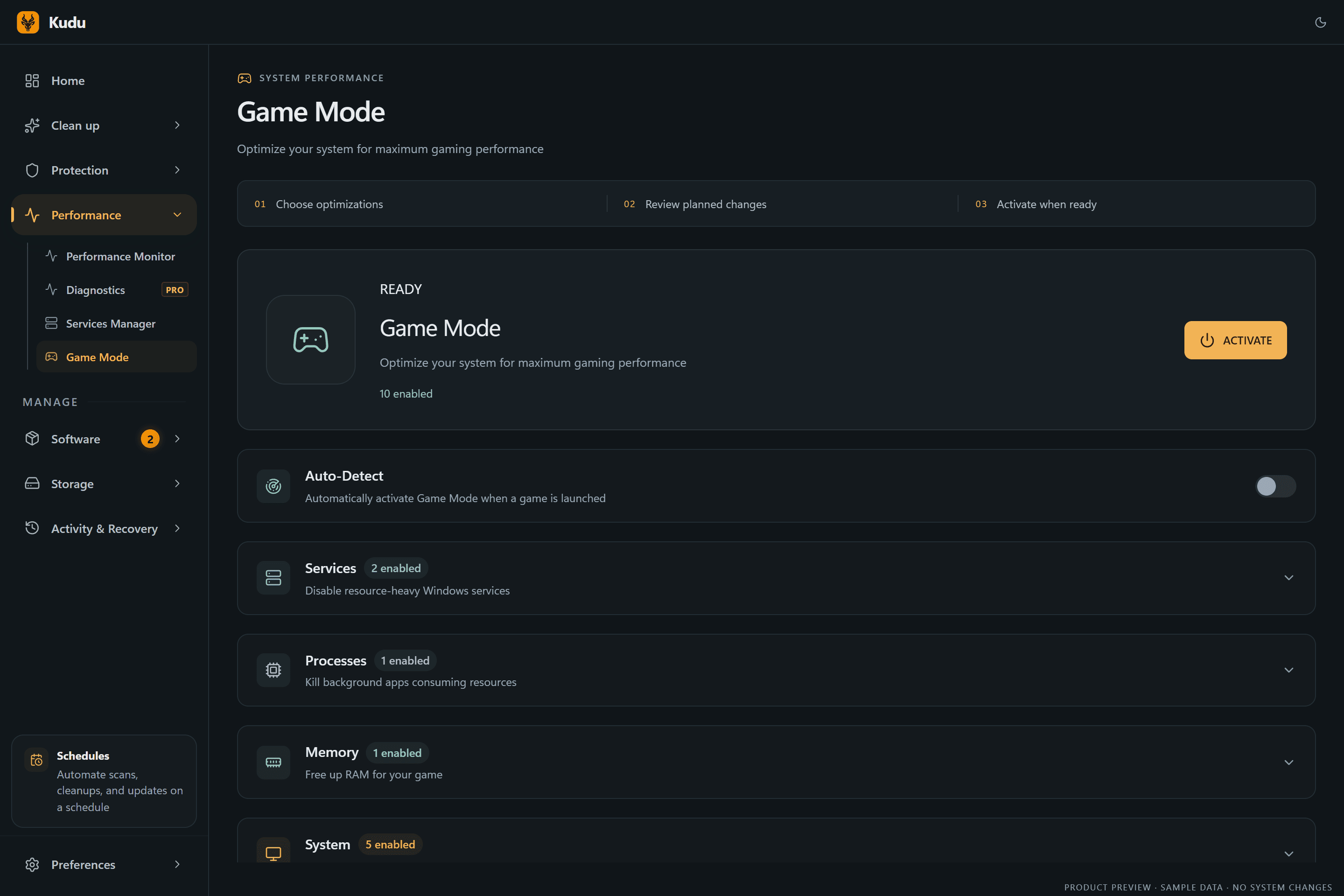
Kudu’s Game Mode applies supported Windows gaming tweaks and records how to restore them. It does not promise FPS gains; drivers and in-game settings still matter.
Download Kudu Free →How Game Mode worksWhat Causes This?
Dota 2 stutter often shows up after a game update, a GPU driver change, or when shader caches need to rebuild. It can also happen when the game is switching APIs or when overlays, capture tools, and browser tabs are competing for CPU, memory, or disk access during matches.
More general causes include outdated graphics drivers, damaged game files, unstable background apps, Windows power settings, and thermal throttling. Network issues can cause input delay or rubber-banding, but they do not usually cause low FPS by themselves.
Common Symptoms
- FPS drops during team fights, ability effects, or camera movement.
- Short freezes or hitching when loading into a match or seeing effects for the first time.
- Smooth menus but uneven frame pacing in actual matches.
- Stutter that starts after a Dota 2 update or GPU driver update.
- Higher CPU or disk usage from Steam, overlays, or background apps while playing.
How to Fix It Manually
-
Verify Dota 2 files in Steam
In Steam, open Library, right-click Dota 2, choose Properties, then Installed Files and run Verify integrity of game files. This checks for damaged or missing files after updates. Steam documents the process here: https://help.steampowered.com/ -
Lower the settings that usually cause fight-time drops
In Dota 2, reduce heavier graphics options and test again in a bot match or replay. If you recently changed the rendering API or advanced video settings, revert to defaults first, then lower settings one at a time so you can see what actually helps. -
Clear and rebuild shader caches
Stutter after a driver update can come from old or rebuilding shader caches. First, let the game finish compiling and test a full match. If stutter continues, clear the GPU shader cache using your graphics driver controls or Windows storage tools if available for your GPU, then restart the PC and launch Dota 2 again so the cache can rebuild cleanly. For NVIDIA, see NVIDIA Control Panel help and driver documentation; for AMD, see AMD Adrenalin support pages; for Intel, see Intel Graphics support. -
Disable overlays and capture tools
Turn off the Steam Overlay for Dota 2 as a test, and temporarily disable Discord overlay, Xbox Game Bar capture, GeForce overlay, Radeon overlay, or third-party monitoring tools. These can cause frame pacing issues even when average FPS looks fine. -
Check Steam and anti-cheat related background activity
Restart Steam completely and relaunch the game. If Dota 2 is updating, syncing cloud data, or another anti-cheat protected game left background services running, finish those tasks first and test again. Do not remove anti-cheat files or use unofficial launchers. -
Update or clean-install your GPU driver
Install the latest stable driver for your GPU from NVIDIA, AMD, or Intel. If stutter started right after a driver update, try the next newer driver or perform a clean reinstall using the vendor’s official installer instructions rather than random third-party tools. -
Set Windows to reduce background interference
Reboot the PC, close browsers and launchers you do not need, and make sure Windows is fully updated. On laptops, plug in the charger and use an appropriate power mode so the CPU and GPU are not being limited during play. Microsoft’s Windows Update and graphics settings documentation can help if you recently changed system display or power behavior. -
Watch for CPU, memory, disk, or temperature limits
If FPS drops happen only after several matches, check whether the CPU or GPU is overheating or whether memory usage is near the limit. Heavy disk activity from indexing, cloud sync, recording software, or antivirus scans can also cause hitching while assets are loading.
Where Kudu Helps
Kudu can help you spot background load with Performance Monitor, so you can see if a browser, launcher, overlay, or updater is spiking CPU, memory, disk, or network use while Dota 2 stutters. Its Startup Manager can disable non-essential apps that keep loading with Windows, and System Cleaner can clear supported GPU shader caches so they rebuild cleanly after driver or game changes. Game Mode can also apply supported Windows gaming tweaks and records how to restore them.
Frequently asked questions
- Why does Dota 2 stutter after an update?
- A game update can invalidate or rebuild shaders, change graphics behavior, or expose a bad driver interaction. Verify the game files, restart Steam, and test again after shader compilation settles.
- Can shader cache cause FPS drops in Dota 2?
- Yes. Old or rebuilding shader caches can cause hitching, especially after GPU driver changes or major game patches. Clearing the supported GPU shader cache and letting it rebuild can help if the problem persists.
- Should I use launch options to fix Dota 2 stutter?
- Only if you know exactly what a launch option does and you are testing one change at a time. In most cases, verifying files, updating the GPU driver, disabling overlays, and checking background load are safer first steps.
Game Mode
Apply gaming tweaks you can undo
Kudu’s Game Mode applies supported Windows gaming tweaks and records how to restore them. It does not promise FPS gains; drivers and in-game settings still matter.
Download Kudu Free →How Game Mode worksRelated guides
How to Fix AION 2 Stuttering and FPS Drops on PC
Reduce stutter, frame drops, and hitching in AION 2 on Windows with driver, shader cache, background app, and in-game settings checks.
How to Fix Apex Legends™ Stuttering and FPS Drops on PC
Reduce stutter, frame drops, and hitching in Apex Legends™ on Windows with driver, shader cache, background app, and in-game settings checks.
How to Fix ARC Raiders Stuttering and FPS Drops on PC
Reduce stutter, frame drops, and hitching in ARC Raiders on Windows with driver, shader cache, background app, and in-game settings checks.
How to Fix Counter-Strike 2 Stuttering and FPS Drops on PC
Reduce stutter, frame drops, and hitching in Counter-Strike 2 on Windows with driver, shader cache, background app, and in-game settings checks.