How to Fix WARDOGS Crashing on PC
Troubleshoot WARDOGS crashing to desktop, freezing, or closing on Windows: file verification, drivers, overlays, and logs.
By Kudu Team · Reviewed
Game Mode
Apply gaming tweaks you can undo
Kudu’s Game Mode applies supported Windows gaming tweaks and records how to restore them. It does not promise FPS gains; drivers and in-game settings still matter.
Download Kudu Free →How Game Mode worksWhat Causes This?
WARDOGS is an online, large-scale Early Access shooter, so crashes often come from a mix of game updates, Steam file corruption, driver issues, or instability triggered by overlays and background apps during matches. Because it uses large multiplayer maps and destructible environments, shader compilation stutter, GPU driver problems, or unstable graphics settings can also cause freezing or sudden closes.
More general causes include damaged system files, missing Visual C++ or DirectX components installed by games, aggressive antivirus behavior, and overclocks that seem stable in other games but fail here. If the crash only happens when joining servers, the cause can also be tied to anti-cheat, network interruptions, or a bad patch.
Common Symptoms
- WARDOGS crashes to desktop when launching or loading into a match.
- The game freezes during deployment, combat, or after a map change.
- Steam shows the game as running, then it closes without an error.
- Crashes happen only with overlays, recording tools, or monitoring apps open.
- The game works in menus but closes when shaders load or heavy combat starts.
How to Fix It Manually
-
Verify the game files in Steam. In Steam, open Library, right-click WARDOGS, choose Properties > Installed Files > Verify integrity of game files. This checks for missing or damaged files and is the first step after any crash or failed update. Steam documents the process here: https://help.steampowered.com/
-
Turn down unstable graphics settings and test without extras. If the game opens, lower texture quality, shadows, effects, and any upscaling or frame generation options you have enabled, then test again. If you recently changed display mode, switch between fullscreen and borderless to see whether one is more stable.
-
Disable Steam Overlay and other overlays. In Steam, open Properties for WARDOGS and disable the Steam Overlay for the game. Also close Discord overlay, GeForce Experience/NVIDIA App overlay, AMD overlay, Xbox Game Bar, MSI Afterburner, RivaTuner Statistics Server, and similar tools, since overlays commonly cause crashes in multiplayer shooters.
-
Clear the GPU shader cache, then reboot. Corrupt shader cache data can cause crashes after patches or driver changes. Use Windows Disk Cleanup for DirectX Shader Cache, or your GPU vendor’s normal cache reset method if available. NVIDIA, AMD, and Intel driver pages are the safest reference points for current driver and shader-related guidance: https://www.nvidia.com/Download/index.aspx , https://www.amd.com/en/support , https://www.intel.com/content/www/us/en/support/detect.html
-
Update or reinstall your graphics driver cleanly. Install the latest stable driver for your GPU from NVIDIA, AMD, or Intel. If crashes started right after a driver update, try a clean reinstall of the same driver or roll back to a previous stable release using the vendor’s official package.
-
Check anti-cheat and security software. If WARDOGS uses an anti-cheat component, let Steam finish installing it and restart the PC before testing again. Add the game folder and Steam to your antivirus allow list only if you trust the install source, and do not use modified executables or anti-cheat files.
-
Repair Windows system files. Open Command Prompt as Administrator and run
sfc /scannow, thenDISM /Online /Cleanup-Image /RestoreHealth. Microsoft documents these tools here: https://support.microsoft.com/ and https://learn.microsoft.com/ -
Check crash details in Event Viewer and Steam logs. Open Event Viewer > Windows Logs > Application and look for an Error entry at the crash time, especially one naming the game executable, a GPU driver module, or an overlay DLL. If the game still fails, reinstall it to the same Steam library first; if that does not help, try a different Steam library on another drive.
Where Kudu Helps
Kudu can help you narrow down whether WARDOGS is crashing because of background load or startup clutter. Use Performance Monitor to spot CPU and memory-heavy processes while the game is running, Startup Manager to disable non-essential launch items, and System Cleaner to clear supported GPU shader caches after game or driver updates.
If you want, you can also use Game Mode on Windows to apply supported gaming tweaks and keep a record of how to restore them later.
Frequently asked questions
- How do I fix WARDOGS crashing on startup?
- Start by verifying the game files in Steam, then disable overlays and update your GPU driver. If it still closes immediately, clear the shader cache and check Event Viewer for the faulting module.
- Why does WARDOGS crash when joining a match?
- That usually points to shader compilation, graphics driver issues, anti-cheat startup, or a corrupted game file that only loads in matches. Lower graphics settings, clear shader cache, and verify files first.
- Can overlays cause WARDOGS to crash?
- Yes. Steam Overlay, Discord overlay, Xbox Game Bar, and GPU monitoring overlays can all interfere with some multiplayer games. Disable them one by one and test the game after each change.
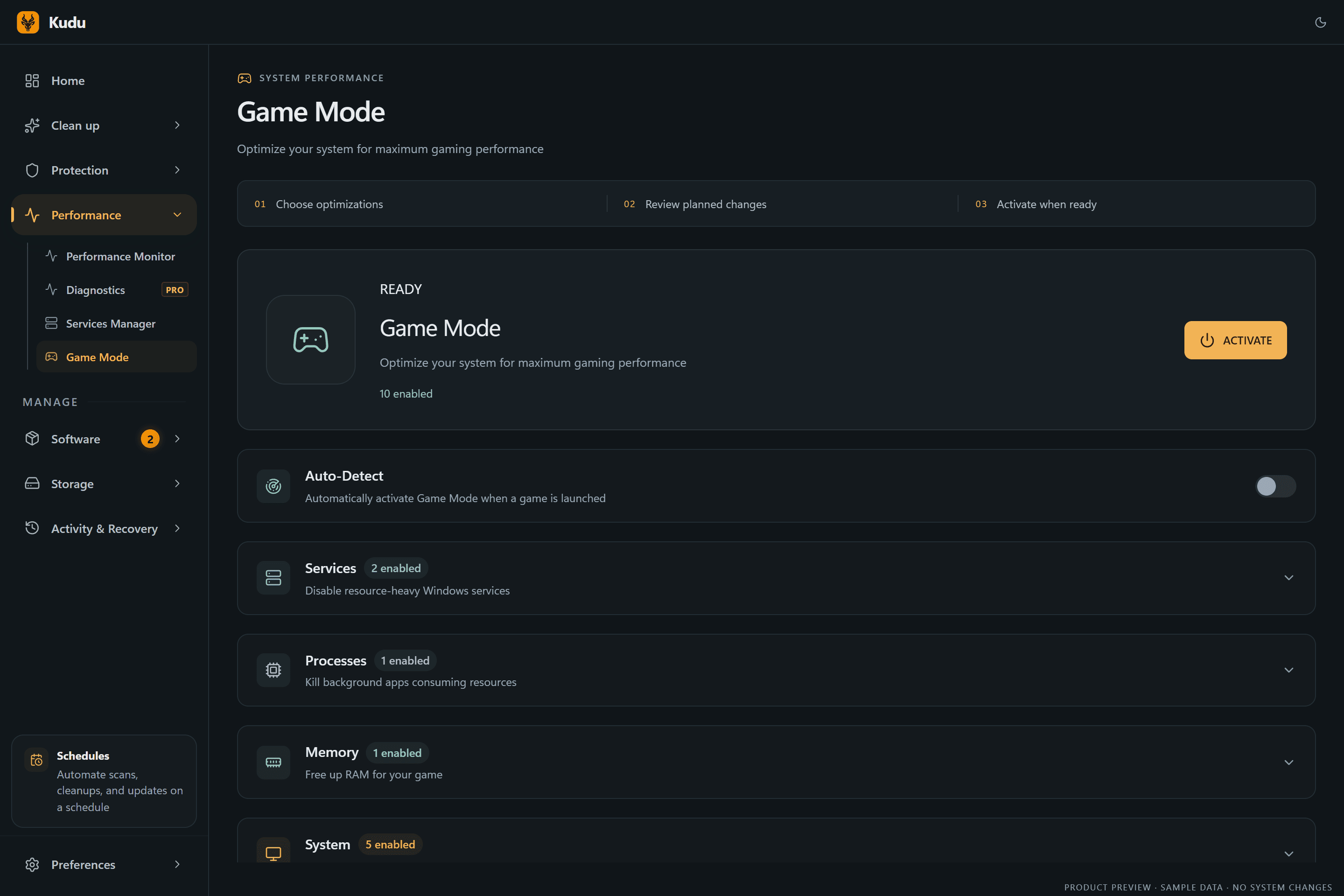
Game Mode
Apply gaming tweaks you can undo
Kudu’s Game Mode applies supported Windows gaming tweaks and records how to restore them. It does not promise FPS gains; drivers and in-game settings still matter.
Download Kudu Free →How Game Mode worksRelated guides
How to Fix AION 2 Crashing on PC
Troubleshoot AION 2 crashing to desktop, freezing, or closing on Windows: file verification, drivers, overlays, and logs.
How to Fix Apex Legends™ Crashing on PC
Troubleshoot Apex Legends™ crashing to desktop, freezing, or closing on Windows: file verification, drivers, overlays, and logs.
How to Fix ARC Raiders Crashing on PC
Troubleshoot ARC Raiders crashing to desktop, freezing, or closing on Windows: file verification, drivers, overlays, and logs.
How to Fix Counter-Strike 2 Crashing on PC
Troubleshoot Counter-Strike 2 crashing to desktop, freezing, or closing on Windows: file verification, drivers, overlays, and logs.