How to Fix Geometry Dash Crashing on PC
Troubleshoot Geometry Dash crashing to desktop, freezing, or closing on Windows: file verification, drivers, overlays, and logs.
By Kudu Team · Reviewed
Game Mode
Apply gaming tweaks you can undo
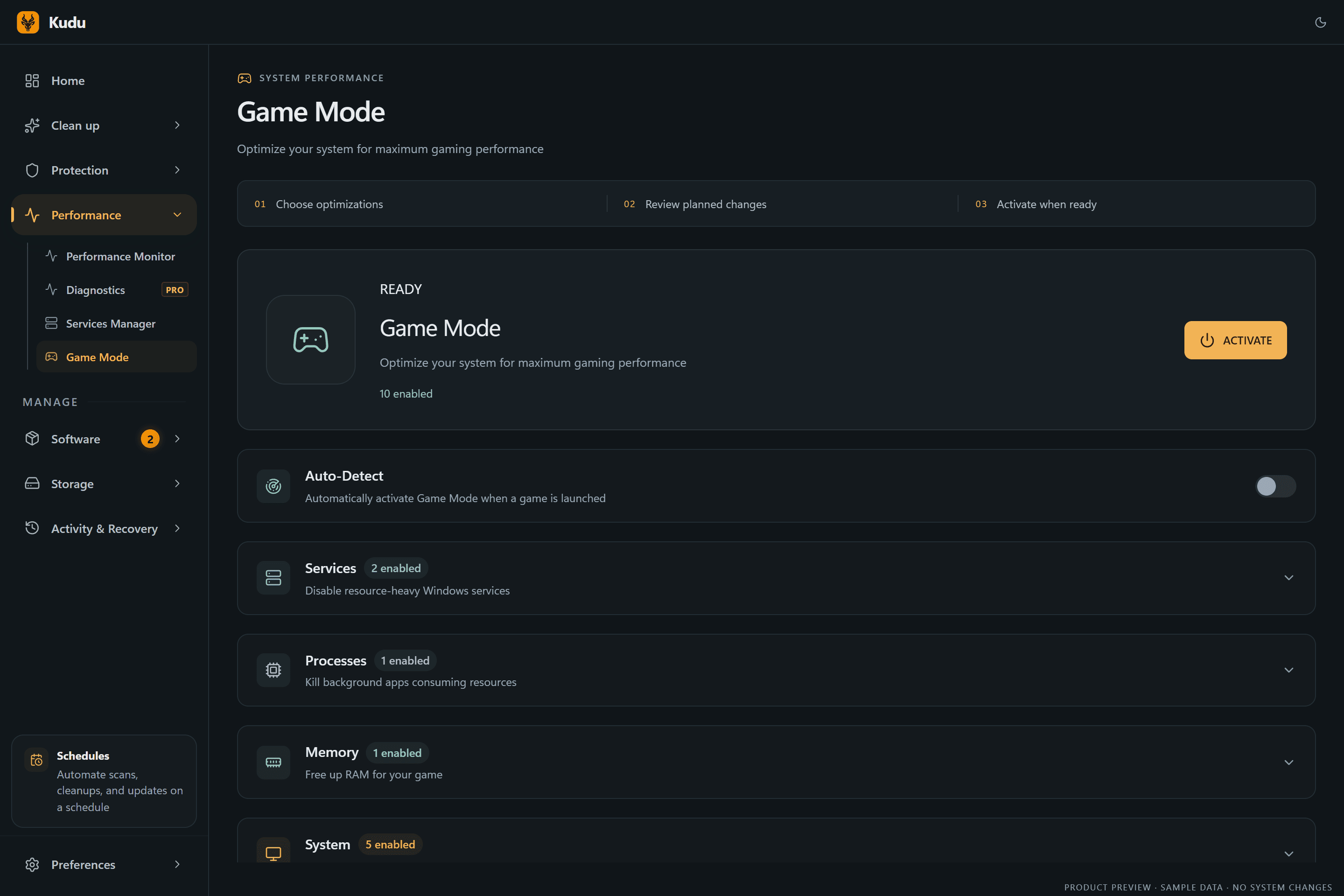
Kudu’s Game Mode applies supported Windows gaming tweaks and records how to restore them. It does not promise FPS gains; drivers and in-game settings still matter.
Download Kudu Free →How Game Mode worksWhat Causes This?
Geometry Dash crashes on PC are often tied to corrupted game files, bad custom level or resource data, overlay conflicts, or graphics driver issues. Because it is a lighter Steam game, crashes can also show up after a failed update, a broken Steam Cloud sync, or when the game tries to load a problematic level or setting.
More generally, crashes can come from unstable GPU drivers, damaged Windows system files, background apps hooking into the game, or security software blocking game files. If the game closes on launch, freezes mid-level, or crashes when opening menus, start with Steam and driver checks first.
Common Symptoms
- Geometry Dash closes to desktop when you press Play or open a level.
- The game freezes on a black screen or stops responding after launch.
- Crashes happen only when using custom levels, songs, or certain menus.
- The game worked before an update, then started crashing afterward.
- Geometry Dash crashes while Steam overlay, Discord overlay, or recording tools are running.
How to Fix It Manually
-
Verify the game files in Steam. In Steam, open Library > right-click Geometry Dash > Properties > Installed Files > Verify integrity of game files. This checks for missing or damaged files and is the best first step for launch crashes. Steam’s official help covers file verification: https://help.steampowered.com/
-
Disable overlays and capture tools. Turn off the Steam Overlay for Geometry Dash in the game’s Steam properties, then also disable Discord overlay, Xbox Game Bar, GeForce Experience overlay, MSI Afterburner/RivaTuner, or similar tools if you use them. These hooks can cause crashes or freezing in older or lighter games.
-
Test without Steam Cloud sync if crashes started after a sync issue. In the game’s Steam Properties, temporarily disable Steam Cloud for Geometry Dash, then launch the game again. If the crash is tied to damaged synced data, this can help confirm it. Re-enable it later if the game becomes stable.
-
Clear the GPU shader cache using the graphics driver or Windows tools. A bad shader cache can cause launch problems or stutter followed by a crash. For NVIDIA, AMD, or Intel, use the vendor’s normal cache reset method if available, or Windows Disk Cleanup/Storage cleanup options where applicable. Use official vendor guidance if you are changing driver cache settings: NVIDIA: https://nvidia.custhelp.com/ AMD: https://www.amd.com/en/support Intel: https://www.intel.com/content/www/us/en/support.html
-
Update or reinstall your graphics driver. Install the latest stable driver for your GPU from NVIDIA, AMD, or Intel. If crashes began right after a driver update, try a clean reinstall or roll back to the previous stable version instead of assuming newer is better.
-
Run the game with fewer background apps. Close browser tabs, RGB tools, macro tools, third-party audio software, and non-essential launchers before starting the game. If you are troubleshooting, do not run multiple overlays or injectors at the same time.
-
Check Windows system files if multiple games are crashing. Open Command Prompt as Administrator and run
sfc /scannow. If it finds issues or if game crashes affect more than Geometry Dash, follow with DISM using Microsoft’s guidance: https://support.microsoft.com/windows/use-the-system-file-checker-tool-to-repair-missing-or-corrupted-system-files -
Review Windows crash details. Open Event Viewer > Windows Logs > Application and look for an error at the time of the crash. Also check Reliability Monitor by searching for View reliability history in Start. If you see repeated faults tied to a GPU driver, overlay, or a specific DLL, that points to the next fix.
Where Kudu Helps
Kudu can help you narrow down background conflicts by using Performance Monitor to see which processes are using the most CPU or memory while Geometry Dash is running, and to identify startup-linked apps that may be interfering. Its Startup Manager makes it easier to disable non-essential launchers, overlays, and helper apps from starting with Windows, and System Cleaner can clear supported GPU shader caches for a clean test.
Kudu also includes Game Mode for supported Windows gaming tweaks, but it does not promise FPS gains. Use it to simplify troubleshooting, not as a guaranteed crash fix.
Frequently asked questions
- Why does Geometry Dash crash when I open a custom level?
- A custom level, song download, or synced game data may be damaged. Verify the game files in Steam first, then test with Steam Cloud temporarily disabled and with overlays turned off.
- Can overlays make Geometry Dash crash?
- Yes. Steam Overlay, Discord overlay, Xbox Game Bar, and GPU recording overlays can all interfere with launch or gameplay stability. Disable them one by one to find the conflict.
- Should I reinstall Geometry Dash if it keeps closing on startup?
- Reinstalling can help, but verify the files first because it is faster and often fixes the same problem. If that does not work, update the GPU driver and check Event Viewer or Reliability Monitor for the crash source.
Game Mode
Apply gaming tweaks you can undo
Kudu’s Game Mode applies supported Windows gaming tweaks and records how to restore them. It does not promise FPS gains; drivers and in-game settings still matter.
Download Kudu Free →How Game Mode worksRelated guides
How to Fix Geometry Dash Stuttering and FPS Drops on PC
Reduce stutter, frame drops, and hitching in Geometry Dash on Windows with driver, shader cache, background app, and in-game settings checks.
How to Fix AION 2 Crashing on PC
Troubleshoot AION 2 crashing to desktop, freezing, or closing on Windows: file verification, drivers, overlays, and logs.
How to Fix Apex Legends™ Crashing on PC
Troubleshoot Apex Legends™ crashing to desktop, freezing, or closing on Windows: file verification, drivers, overlays, and logs.
How to Fix ARC Raiders Crashing on PC
Troubleshoot ARC Raiders crashing to desktop, freezing, or closing on Windows: file verification, drivers, overlays, and logs.