How to Fix Dota 2 Crashing on PC
Troubleshoot Dota 2 crashing to desktop, freezing, or closing on Windows: file verification, drivers, overlays, and logs.
By Kudu Team · Reviewed
Game Mode
Apply gaming tweaks you can undo
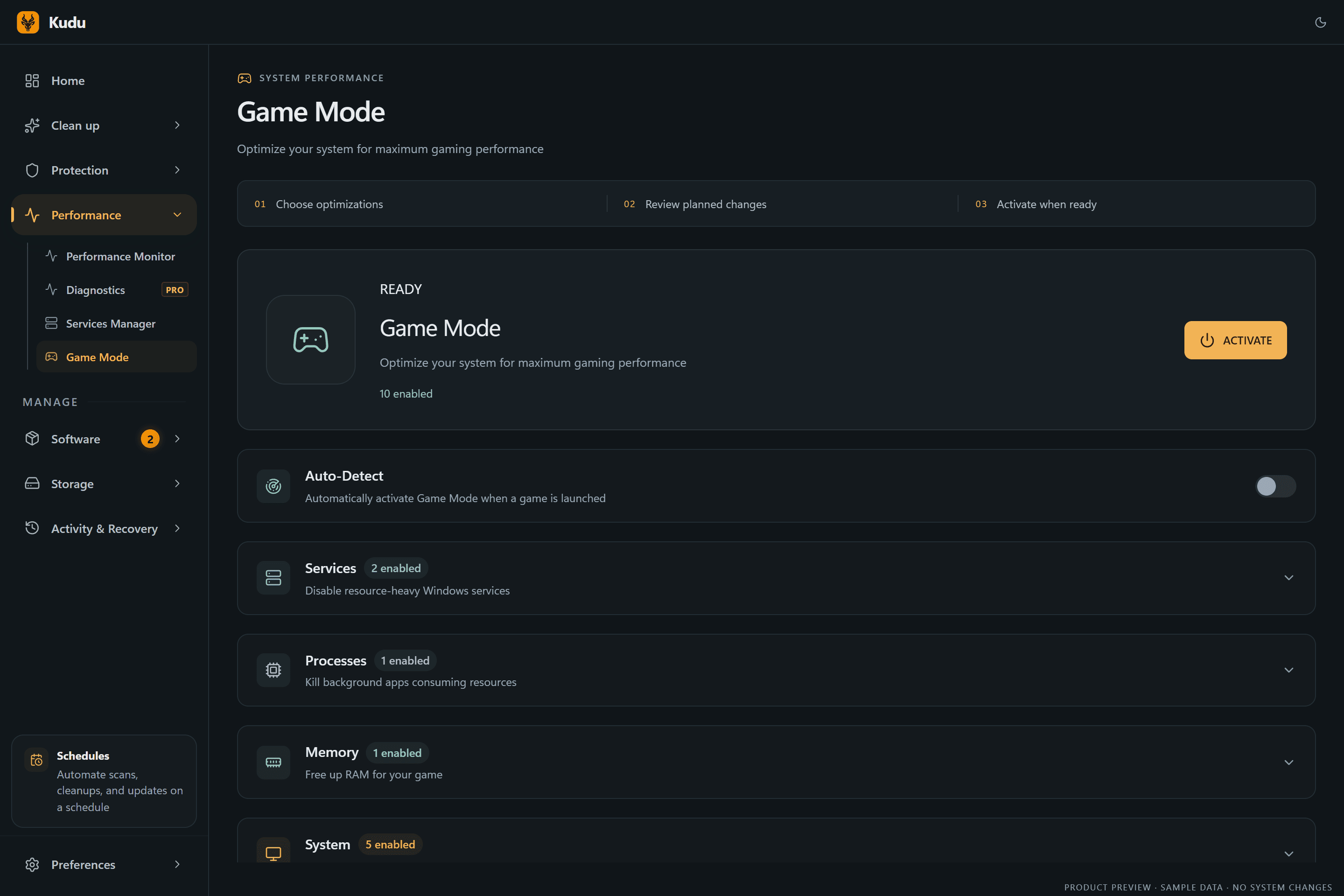
Kudu’s Game Mode applies supported Windows gaming tweaks and records how to restore them. It does not promise FPS gains; drivers and in-game settings still matter.
Download Kudu Free →How Game Mode worksWhat Causes This?
Dota 2 crashes are often tied to Steam file corruption after a game update, GPU driver issues, DirectX/Vulkan rendering problems, or conflicts from overlays and capture tools. Because Dota 2 updates regularly, a bad shader cache or a launch option that used to work can also start causing crashes.
More general causes include unstable overclocks, damaged Windows system files, background apps that hook into games, and security software blocking game components. If the game crashes only during match loading or after hero selection, that often points to files, drivers, or rendering settings rather than a full hardware failure.
Common Symptoms
- Dota 2 crashes to desktop when launching from Steam.
- The game freezes on the Valve logo, loading screen, or during hero selection.
- Dota 2 closes mid-match with no error message.
- Black screen, driver timeout, or a full game lockup after an update.
- Crashes only when Discord, Steam Overlay, or recording software is running.
How to Fix It Manually
-
Verify Dota 2 files in Steam. In Steam, open Library > right-click Dota 2 > Properties > Installed Files > Verify integrity of game files. This is the first thing to do after a crash starts following an update. Steam’s support docs cover file verification and download cache steps.
-
Remove old launch options and test a different graphics API. In Steam > Dota 2 > Properties > General, clear custom launch options first. If crashes continue, test one API at a time, such as
-vulkanor-dx11, then remove it if it makes things worse. Do not stack multiple old troubleshooting flags unless you know why each one is there. -
Turn off overlays and capture hooks. Disable Steam Overlay for Dota 2 in the game’s Steam properties, then also test with Discord overlay, GeForce Experience/NVIDIA App overlay, Xbox Game Bar, MSI Afterburner/RivaTuner, and similar tools turned off. These are common causes of crashes, black screens, or instant closes in Source 2 games.
-
Reset shader caches and let them rebuild. Clear the GPU shader cache using the graphics driver’s normal cleanup option or Windows Disk Cleanup if available, then reboot and launch the game again. If you use a cleanup tool, only remove shader caches and temporary graphics caches you recognize; do not delete random Steam folders by hand.
-
Update or clean-install your GPU driver. Install the latest stable driver directly from NVIDIA, AMD, or Intel. If crashes began right after a driver update, try a clean reinstall or roll back to the previous stable version using the vendor’s official installer guidance.
-
Check Windows for corrupted system files. Open Command Prompt as Administrator and run
sfc /scannow. If it reports problems it cannot fix, runDISM /Online /Cleanup-Image /RestoreHealthand then run SFC again. Microsoft documents both tools for repairing Windows image and system file corruption. -
Stop background apps and remove unstable overclocks. Close RGB tools, hardware monitors, browser tabs with video, motherboard tuning apps, and anything that injects into games. If your CPU, GPU, or RAM is overclocked or undervolted, return it to stock settings and test again.
-
Check Dota 2 and Windows crash logs. In Event Viewer > Windows Logs > Application, look for errors at the exact crash time, especially display driver resets or application faults. Steam can also generate crash dumps and logs for some failures; these can help confirm whether the issue is the game, the driver, or a background process.
Where Kudu Helps
Kudu can help you rule out common PC-side causes without guessing. Use System Cleaner to clear supported GPU shader caches, Performance Monitor to spot background apps spiking CPU or memory while Dota 2 is running, and Startup Manager to disable non-essential launch-at-boot tools that may conflict with Steam or the game.
If you want, you can also use Game Mode on Windows to apply supported gaming tweaks and keep a record of how to restore them later.
Frequently asked questions
- Why does Dota 2 keep crashing after an update?
- The most common causes are damaged game files, a stale shader cache, or a driver issue exposed by the new patch. Verify the game files in Steam first, then clear shader caches and update or reinstall your GPU driver.
- Can Steam Overlay make Dota 2 crash?
- Yes. Steam Overlay, Discord overlay, and recording or monitoring tools can all conflict with Dota 2 and cause freezes, black screens, or crashes to desktop. Disable them one by one and test.
- Should I reinstall Dota 2 if it keeps crashing?
- Only after easier checks fail. Verify files, remove launch options, disable overlays, and update drivers first; a full reinstall takes longer and often does not fix a driver or overlay conflict.
Game Mode
Apply gaming tweaks you can undo
Kudu’s Game Mode applies supported Windows gaming tweaks and records how to restore them. It does not promise FPS gains; drivers and in-game settings still matter.
Download Kudu Free →How Game Mode worksRelated guides
How to Fix AION 2 Crashing on PC
Troubleshoot AION 2 crashing to desktop, freezing, or closing on Windows: file verification, drivers, overlays, and logs.
How to Fix Apex Legends™ Crashing on PC
Troubleshoot Apex Legends™ crashing to desktop, freezing, or closing on Windows: file verification, drivers, overlays, and logs.
How to Fix ARC Raiders Crashing on PC
Troubleshoot ARC Raiders crashing to desktop, freezing, or closing on Windows: file verification, drivers, overlays, and logs.
How to Fix Counter-Strike 2 Crashing on PC
Troubleshoot Counter-Strike 2 crashing to desktop, freezing, or closing on Windows: file verification, drivers, overlays, and logs.